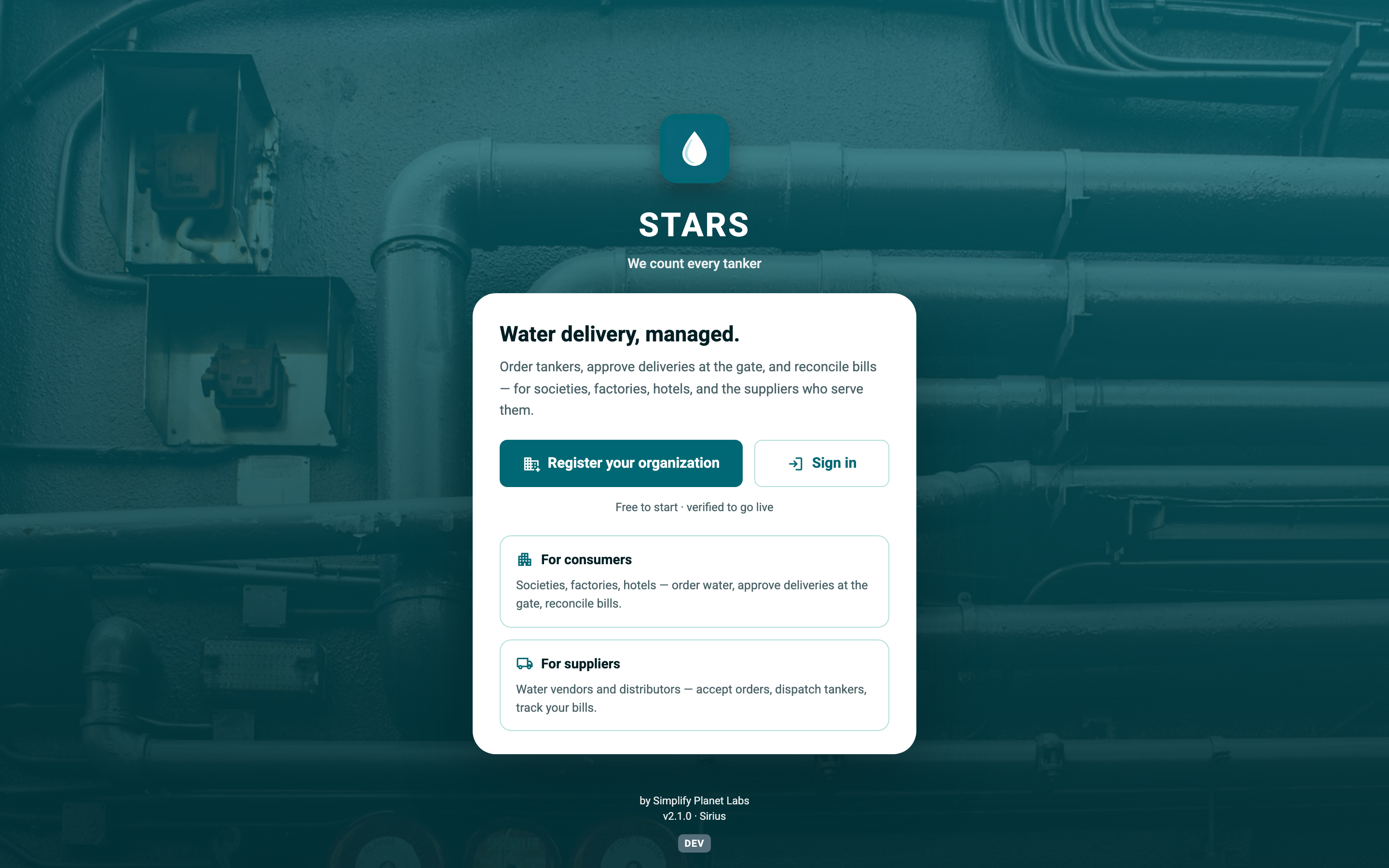
STARS — the Smart Tanker Activity Recording System — is a simple way to record, verify and reconcile every water-tanker delivery, for the organisations that buy water and the businesses that supply it.
Many housing societies, factories, hotels and hospitals in India rely on water delivered by tanker. Counting those tankers by hand — a register at the gate, a diary in the guard's pocket, a WhatsApp message to the manager — is easy to lose, easy to dispute, and hard to reconcile against a supplier's monthly bill. Was it a 10,000-litre tanker or a 20,000-litre one? Did it actually arrive? Who approved it?
STARS replaces the paper register with a shared, tamper-evident record. A guard photographs each tanker live at the gate; the delivery is stamped with the time, the vehicle, the quantity and who recorded it; the organisation's admin approves it; and at month-end the supplier's bill can be reconciled against the exact deliveries everyone agreed on. Nobody argues about a number that both sides watched being recorded.
Everyone on STARS belongs to one of two kinds of organisation:
Behind both sits Simplify Planet Labs LLP, which runs STARS — it verifies new organisations and looks after platform billing.
Every organisation on STARS has a short Code — for example PGCHS or OCEAN. Your Code identifies your organisation when you sign in: on the login screen you type your Code in the Your Code field, then your username and password. Everyone in your organisation shares the same Code but has their own username.
You never have to invent a Code. STARS generates it for you automatically from your organisation's name when you register (for instance, "Maple Court CHS" becomes something like MAPLEC). Keep it handy — your whole team needs it to sign in.
STARS carries two separate money conversations, and it helps to know they are different:
"Verification" refers to a delivery being approved — confirmed as genuine by the consumer's admin — and to your organisation being verified by Simplify Planet Labs LLP (moving from a free pilot to a live account, explained next).
When you first register, your organisation starts as a TEST (pilot) account. It is fully functional — you can invite your team, record real deliveries and explore every feature — but it is understood to be a trial while Simplify Planet Labs LLP gets you set up.
The one visible difference is billing: while you are a pilot, every invoice is stamped SAMPLE. A SAMPLE bill is a preview that shows you exactly how billing will look — it is never a real amount to pay, and it is watermarked "not a demand for payment". Once Simplify Planet Labs LLP verifies your organisation and switches it to REAL, invoices become live.
TEST = free pilot, non-binding SAMPLE invoices, can be removed cleanly. REAL = a verified, live organisation with real bills. You do not switch this yourself; Simplify Planet Labs LLP does it when you are ready to go live.
STARS is a paid product with one simple promise: recording water is never behind a paywall — every plan logs deliveries with a gate photo; what grows with your plan is the billing and insight around it. To get started you choose a plan, pay by UPI or cheque, and register your organisation — or you are onboarded by a supplier who already uses STARS. Either way, you sign in with your Code and get to work. Because plans differ, some features described in this guide appear only on the plans that include them — if you don't see one, it simply isn't part of your current plan.
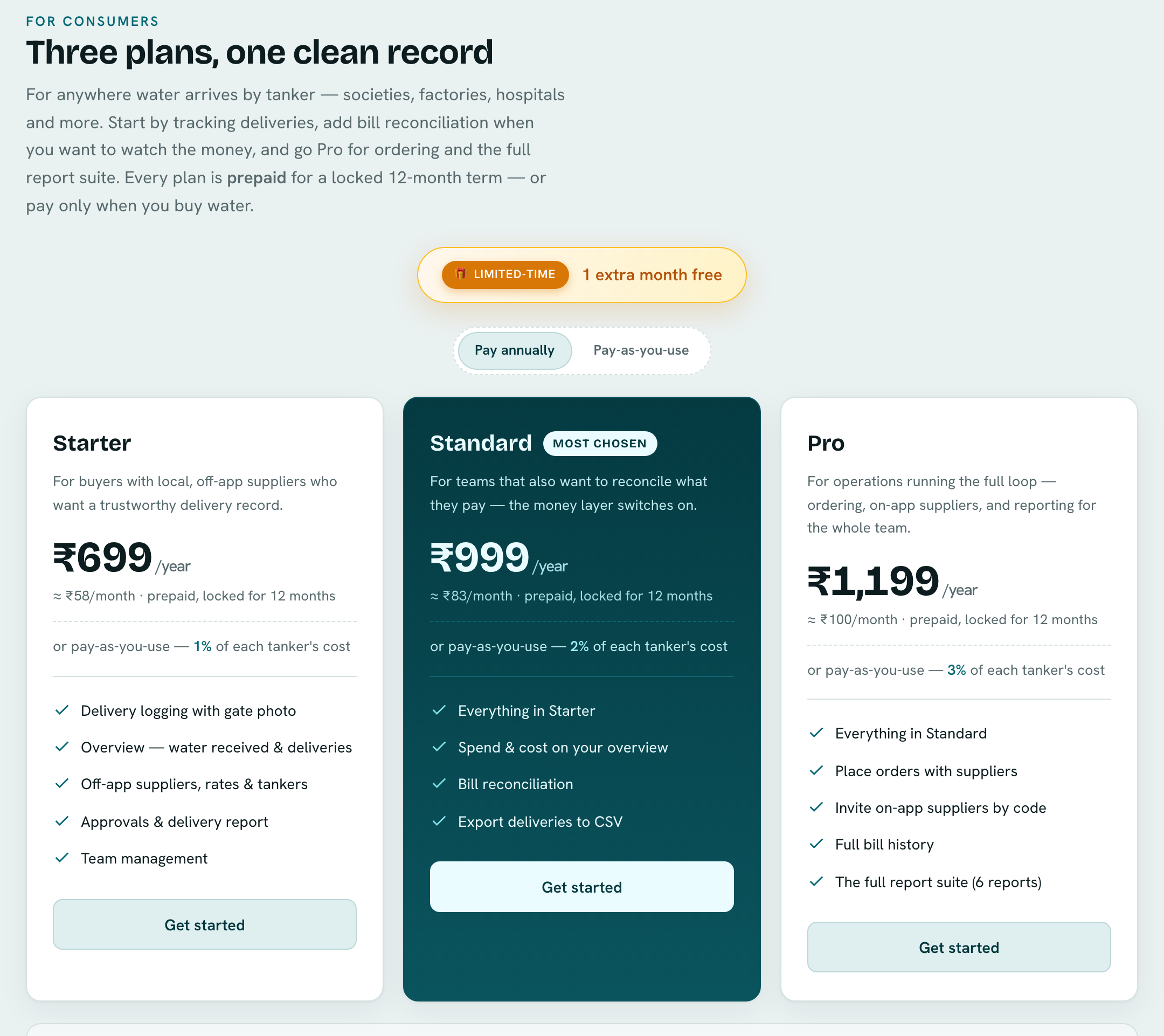
Both sides of STARS — consumers (who buy water) and suppliers (who sell it) — pick a plan that matches how much they lean on STARS. Plans are prepaid: an annual plan is a flat fee for a locked 12-month term, or you can pay pay-as-you-use and be charged only in the months you actually buy water.
| Plan | Best for | Adds |
|---|---|---|
| Starter | A trustworthy delivery record | Delivery logging + photo, Overview, off-app suppliers, approvals, team management |
| Standard | Watching the money too | Everything in Starter, plus spend & cost, bill reconciliation, and export to CSV |
| Pro | Ordering & the full picture | Everything in Standard, plus placing orders, inviting on-app suppliers, bill history, and the full report suite |
Suppliers choose between Starter (one user) and Pro (many users), both with the full supplier console. The live plans page always shows current pricing and exactly what each plan includes.
Existing pilot organisations keep working exactly as before — you will simply be told your plan once one is applied to your account. Nothing you record, reconcile or approve changes.
When you sign up (or add a plan, or top up a pay-as-you-use balance), STARS shows a payment step where you choose how you want to pay — by UPI or by cheque:
Either way, you can start using STARS right away — there is no wait while our team confirms the payment. STARS is also onboarding a payment gateway, after which more payment options and faster validation will be available.
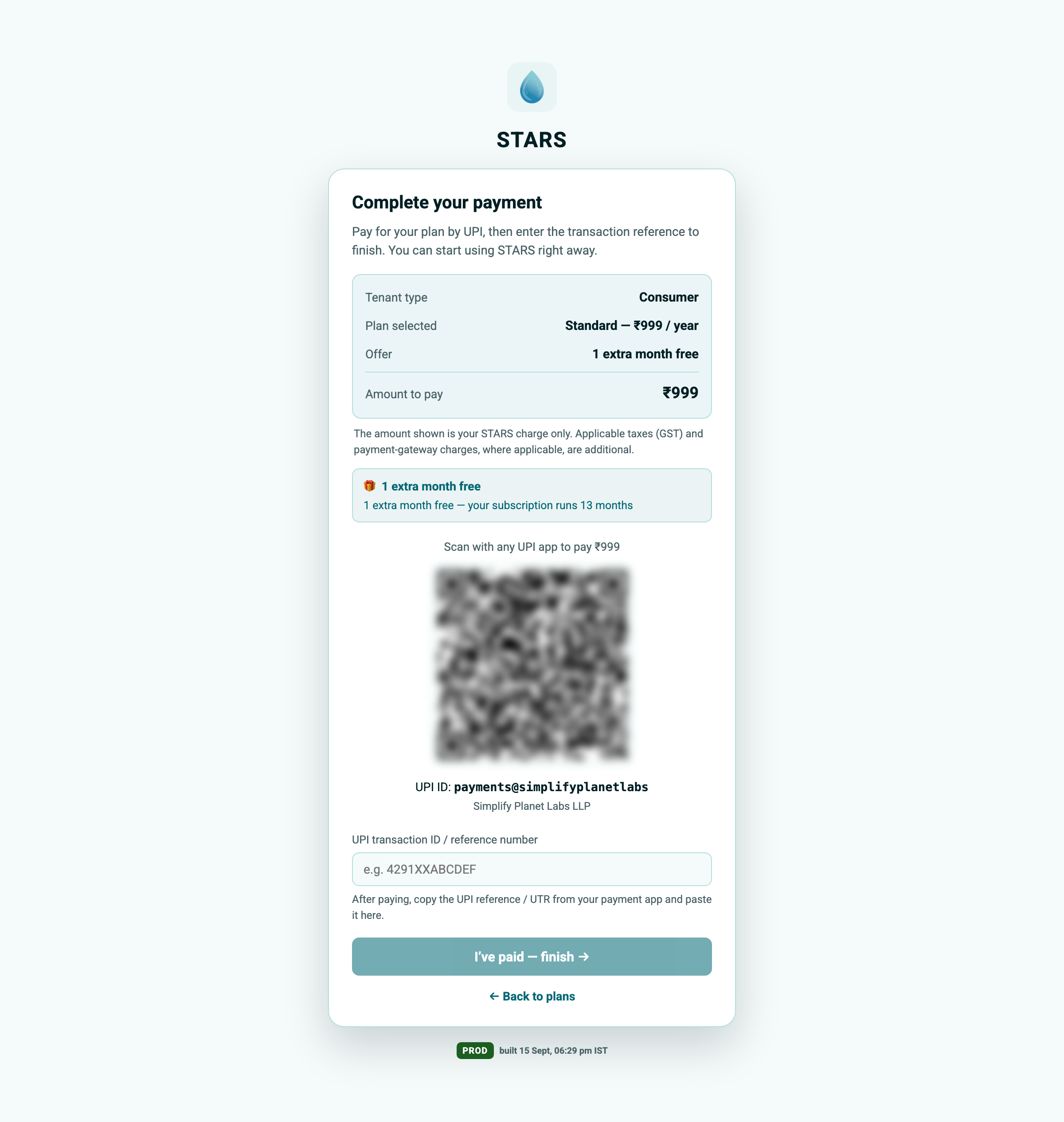
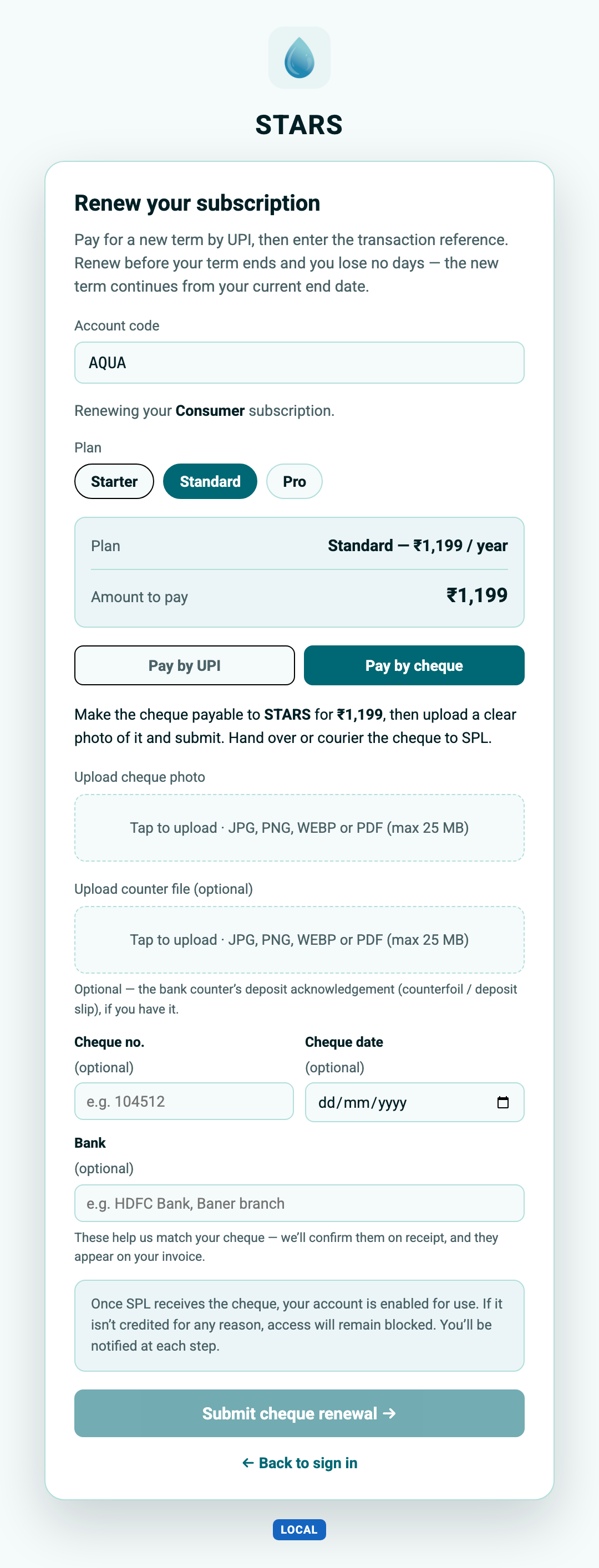
Our team verifies your payment, usually within 24–72 hours. Once it checks out, your account is made permanent — and you can keep using STARS in the meantime, no restriction. If a payment is never received or does not match the plan, we email you before anything changes. Paid but hit a snag? Email support@simplifyplanetlabs.app with a screenshot and we will sort it out.
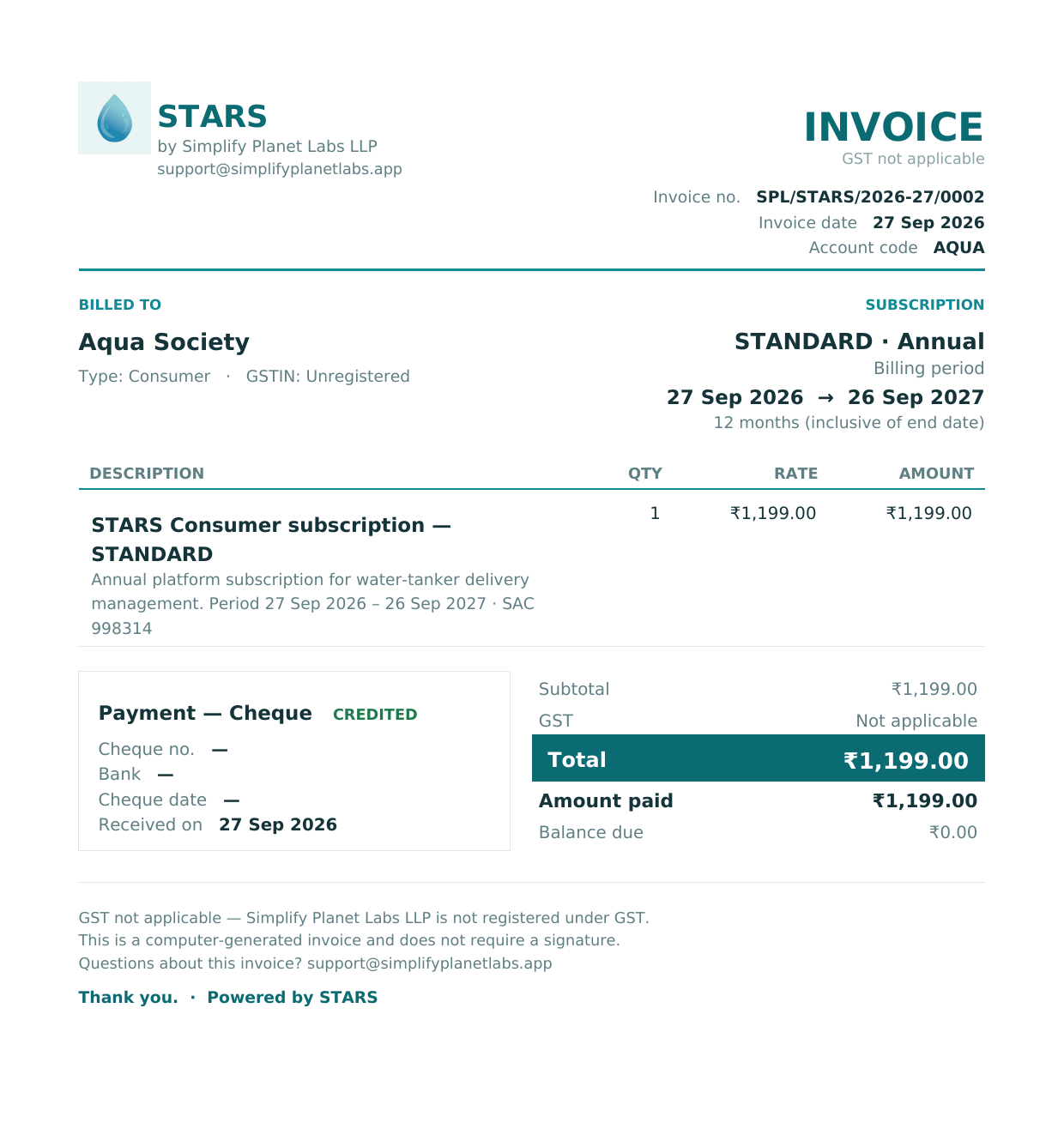
Every payment generates a proper invoice (PDF) — it is emailed to you when the payment is confirmed, and you can download it any time. Keep it for your records.
Open the STARS home page in a web browser. You will see two choices: Register your organization and Sign in. Choose to register.
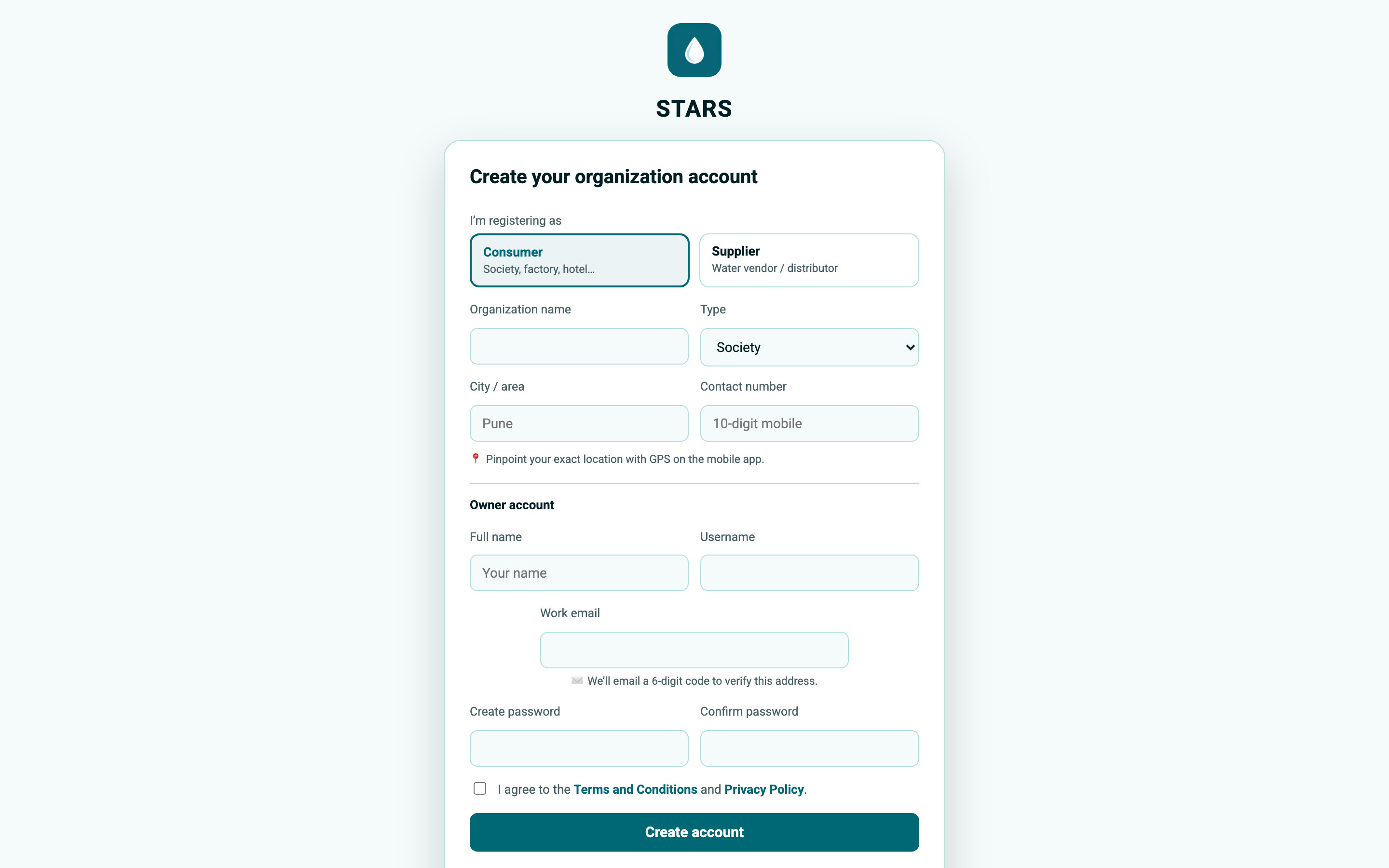
You do not enter a Code here — STARS creates one for you. The form checks your entries as you go (a red hint appears under any field that needs fixing), and you can pinpoint your exact location later with GPS in the mobile app.
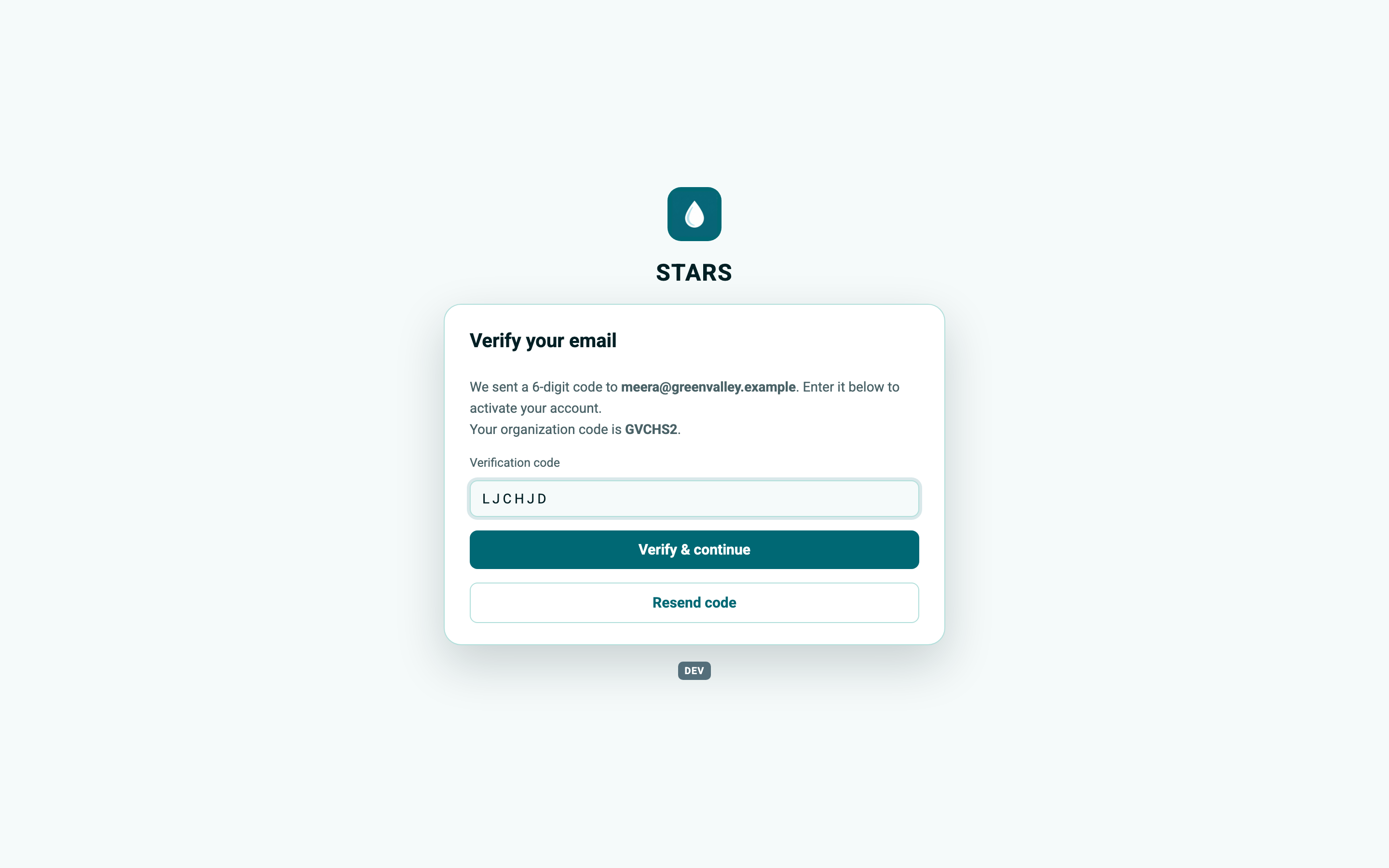
STARS emails a 6-character verification code to the address you gave. On the next screen:
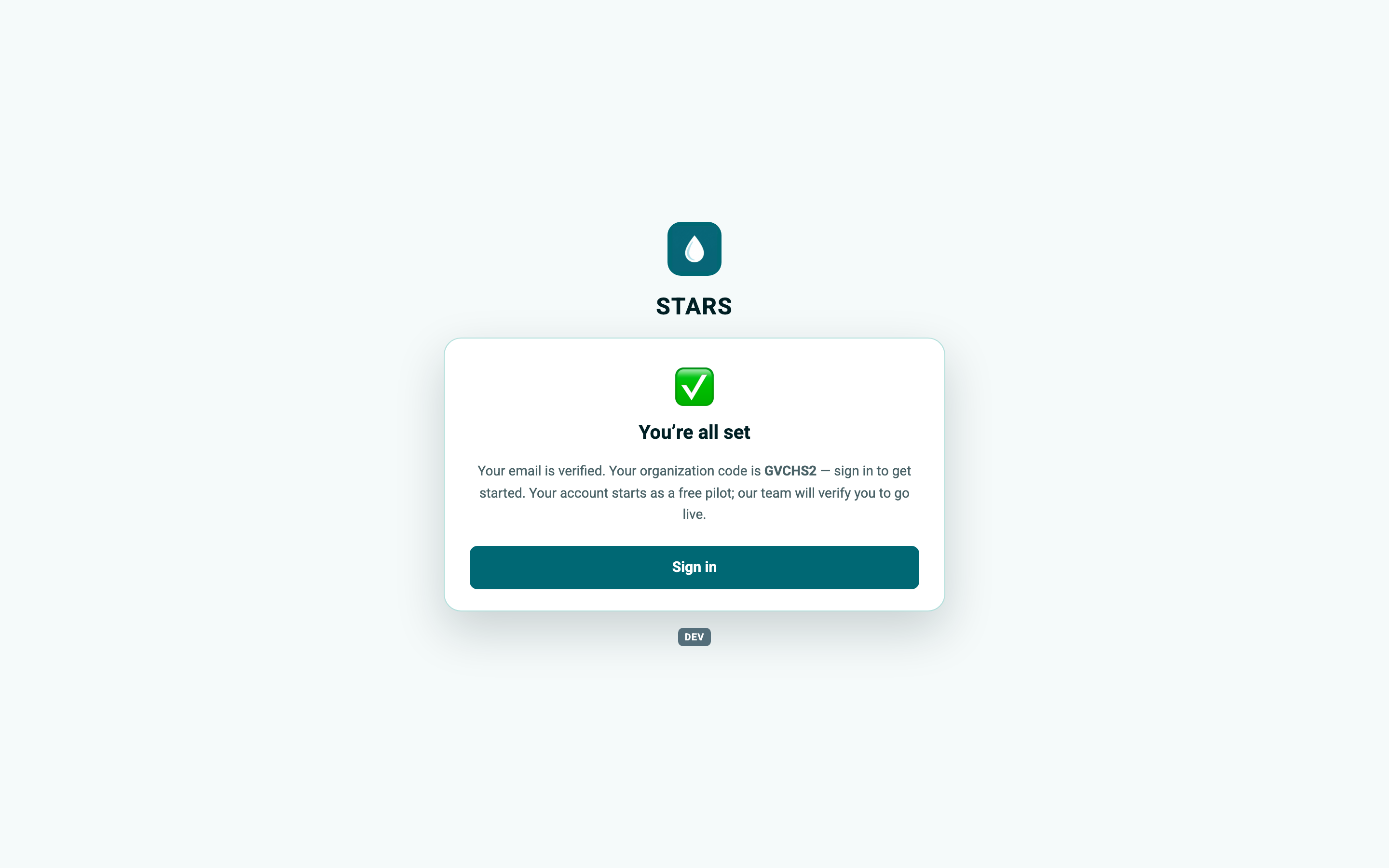
When the code is accepted you see You're all set: your email is verified, your organisation code is confirmed, and your account starts as a free pilot that our team will verify to go live. Choose Sign in to continue.
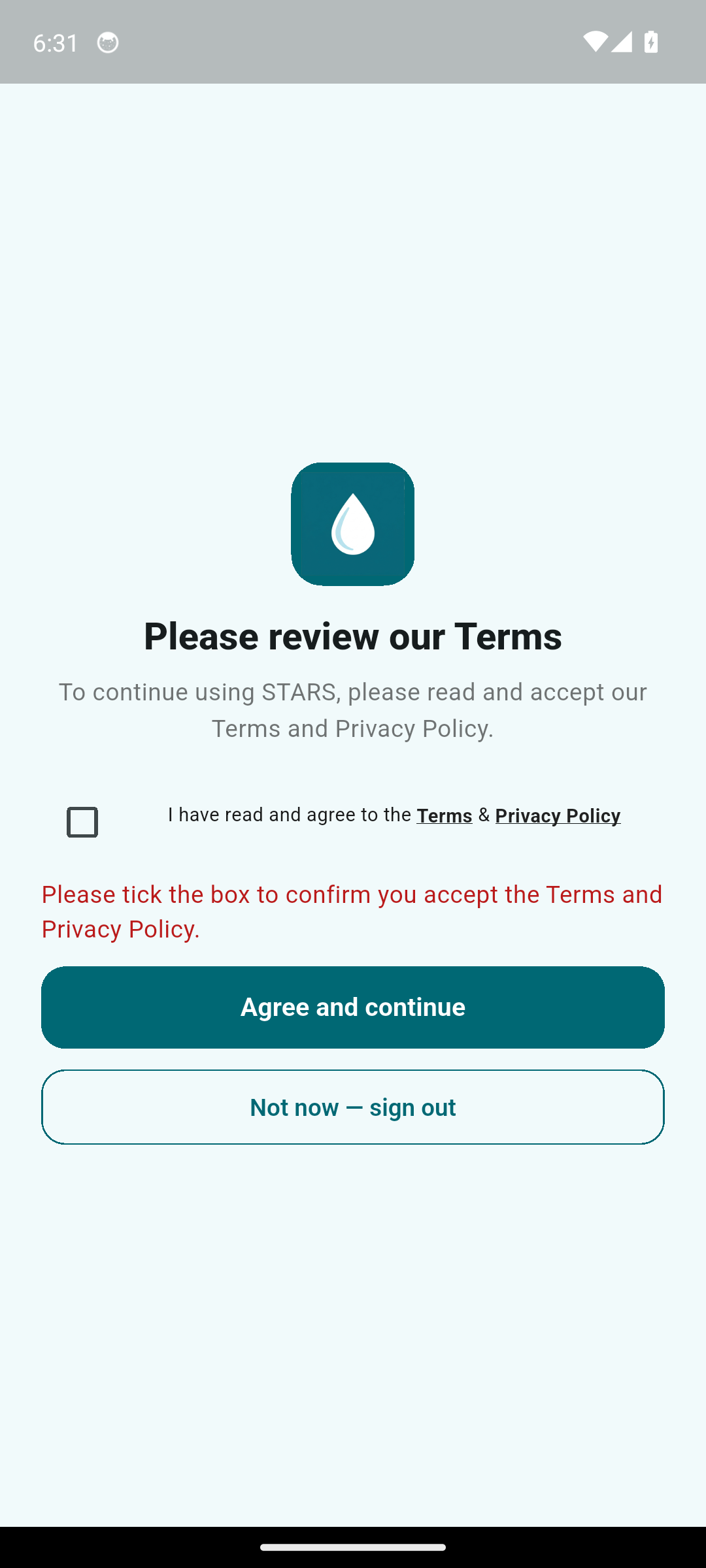
The first time you sign in — and again only if our Terms or Privacy Policy later change — STARS asks you to review and accept them before you reach the app.
On the sign-in screen, enter three things:
After signing in you land on your home screen automatically — the Overview dashboard for consumer roles, or the supplier Dashboard for supplier roles.
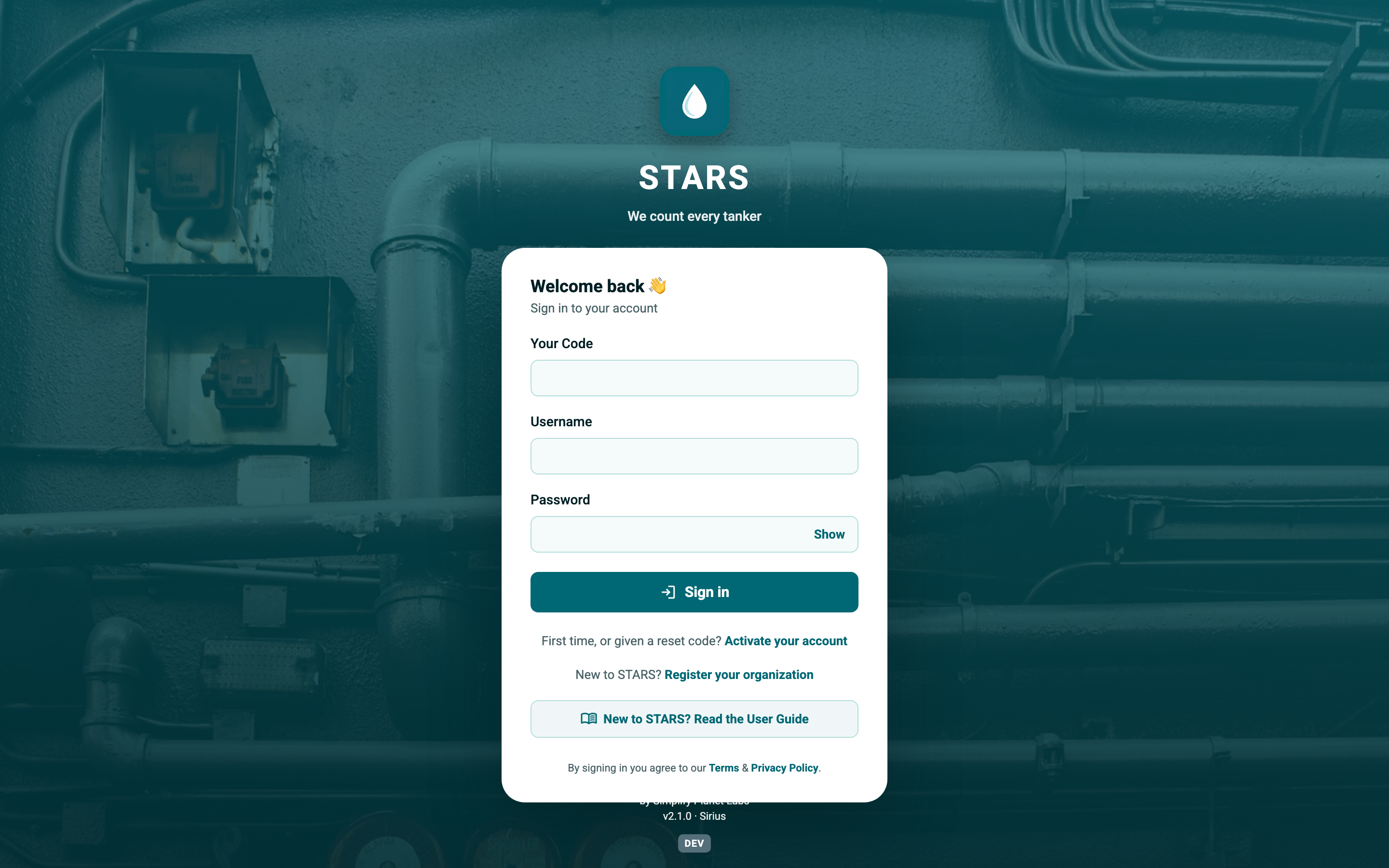
If your device remembers the wrong Code from a previous login, simply clear the Your Code field and type the correct one. A wrong Code is the most common reason a correct username and password are rejected.
You do not have to register yourself. A supplier who already uses STARS can add your organisation for you (see §5.7). When they do:
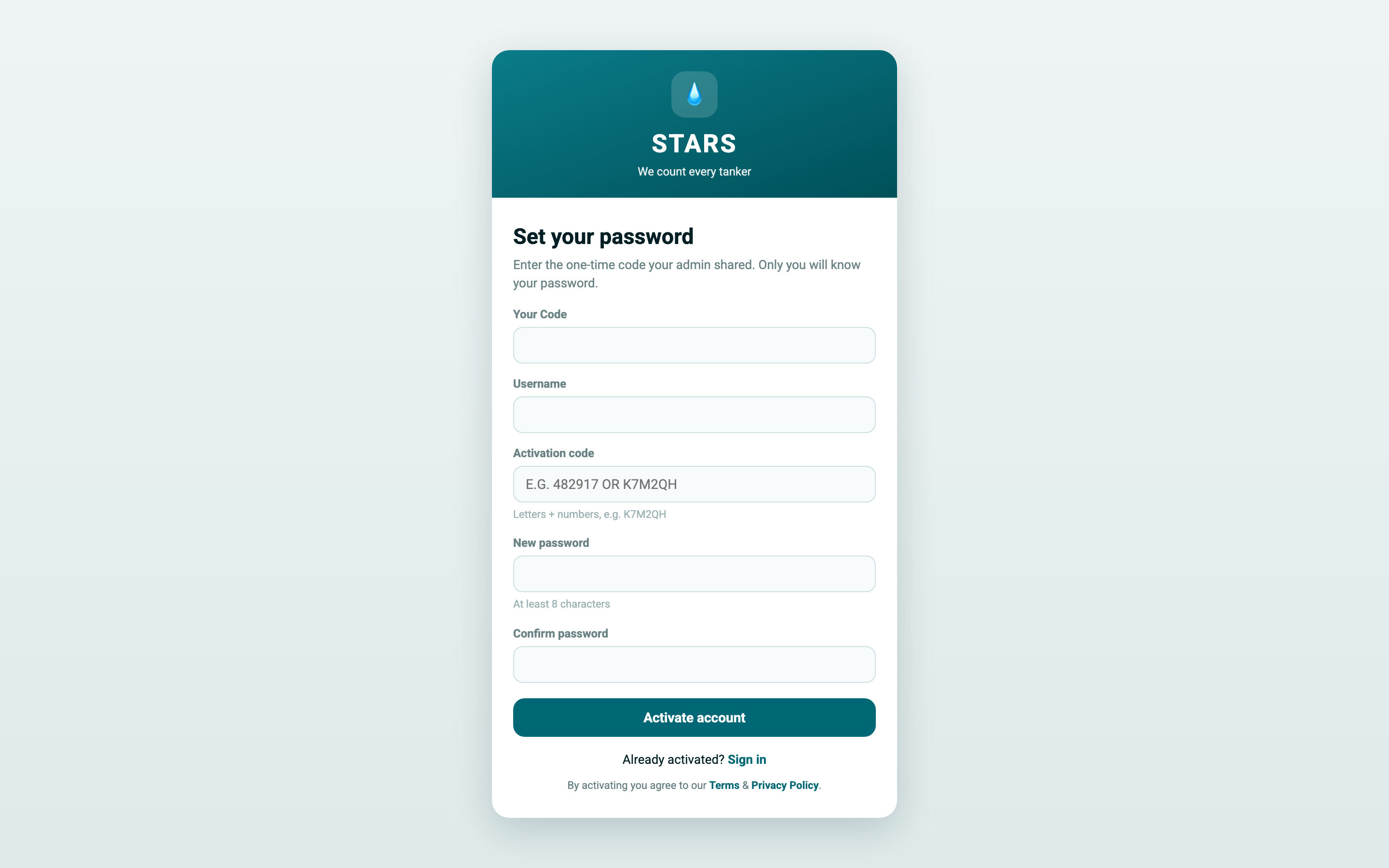
Team members who are added by an admin — and anyone given a reset code — set their own secret through Activate your account (linked from the sign-in screen as First time, or given a reset code?).
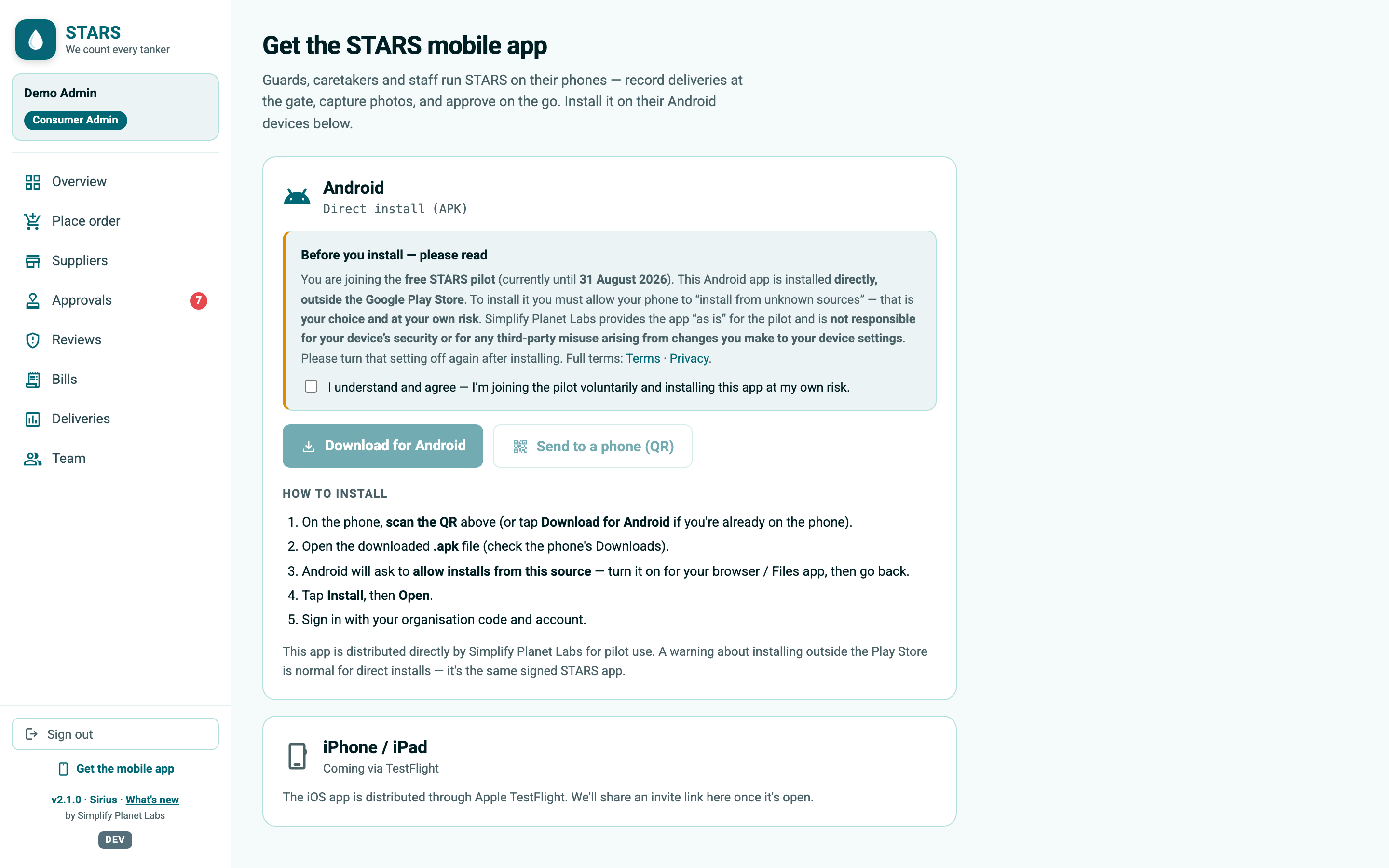
Guards, caretakers and field staff run STARS on their phones. Open Get the mobile app from the bottom of the sidebar.
Near the version label — on the login screen, and in the sidebar once you are signed in — STARS shows a small coloured environment badge so it is always obvious which system you are using:
| Badge | Colour | Meaning |
|---|---|---|
| PROD | Deep green | The real, live STARS. Your everyday app. |
| UAT | Orange | A pre-production test system used for rehearsals. |
| LOCAL / DEV | Blue / grey | A developer's machine. Not for real data. |
STARS sets this badge automatically from the web address you are on (and, on the app, the server it is connected to), so everyday users on the live app should always see PROD. If you ever see orange or blue where you expect your live app, you are on a test build — check the link you used to sign in.
What you can see and do in STARS depends on your role. Each person has exactly one role in their organisation. STARS shows only the screens your role is allowed to use — so two people in the same organisation may see different menus.
A consumer organisation has up to four roles. The display names adapt to your organisation type — a housing society sees society wording, while a factory or hospital sees wording that fits it (for example Factory Admin instead of Society Admin, Supervisor instead of Care Taker, Gatekeeper instead of Security Guard, Management Reviewer instead of Committee Viewer). The permissions are identical; only the label changes.
| Role | What they do | Where |
|---|---|---|
| Security Guard (Gatekeeper) |
Records tanker deliveries at the gate with a live photo; confirms incoming (ordered) tankers as they arrive. A field role. | Mobile only |
| Care Taker (Supervisor) |
Day-to-day operations: records deliveries, manages suppliers, tankers and rates, confirms incoming deliveries, reconciles supplier bills, views reports. | Web Mobile |
| Consumer Admin (Society / Factory / Hotel Admin) |
Everything the Care Taker can do, plus approval authority — approves deliveries, rate changes, removals and supplier links — plus Reviews, Team management and STARS-bill approval. | Web Mobile |
| Committee (view-only) (Management Reviewer) |
Read-only transparency: watches the Overview dashboard, Deliveries & Reports, and Bills. Cannot change anything. | Web Mobile |
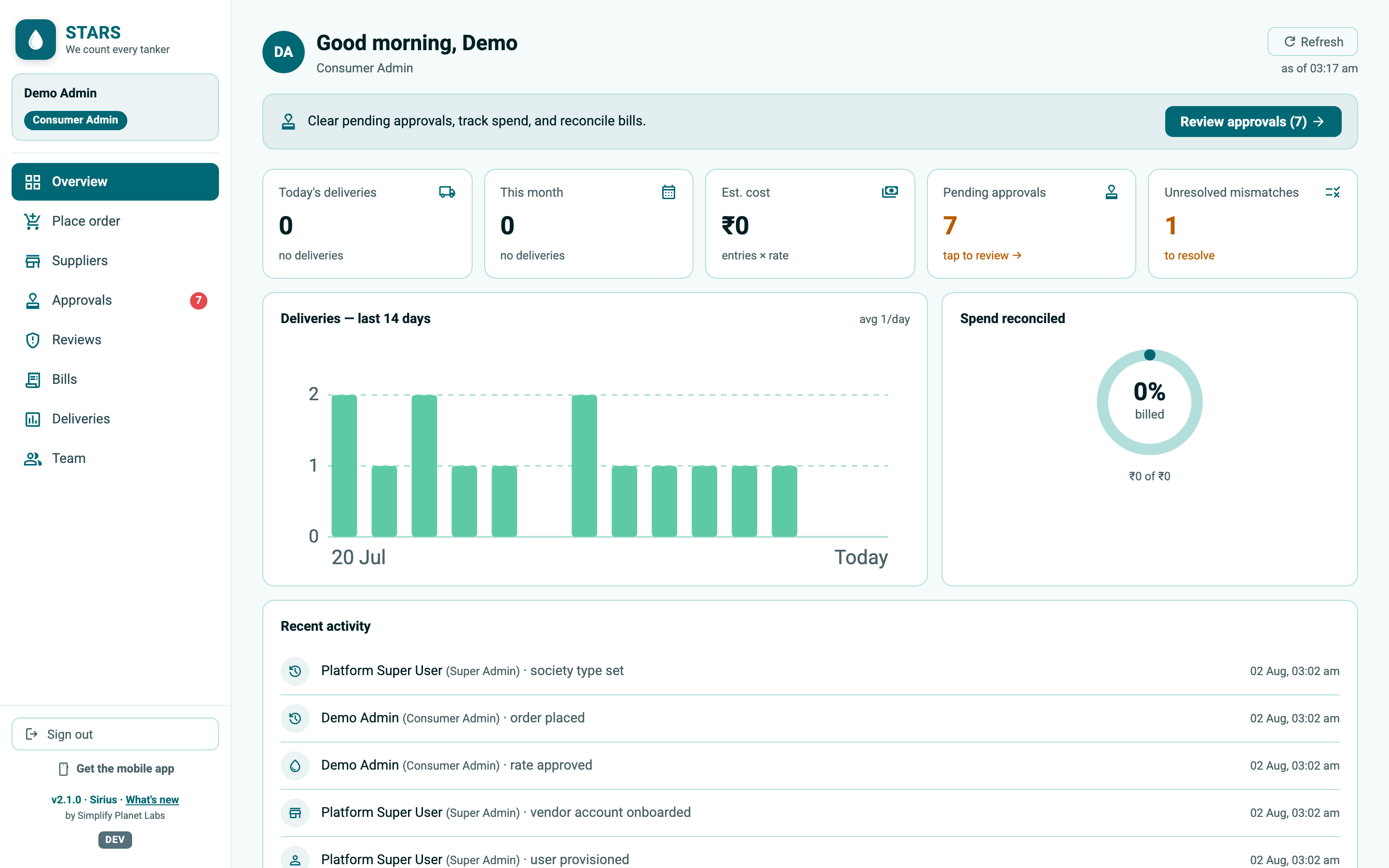
A supplier organisation has two roles. Both use the same web supplier console; the difference is approval authority.
| Role | What they do | Where |
|---|---|---|
| Supplier Supervisor | Runs day-to-day supply: acts on orders, accepts & allocates tankers, manages the fleet and rates, onboards customers, and reconciles the STARS bill. | Web console |
| Supplier Owner | Everything the Supervisor can do, plus edit rights over the supplier account and approval of the STARS bill. A one-person supplier is never blocked — a lone supervisor can approve too. | Web console |
STARS is one product on two screens. As a rule of thumb:
If you sign in on the web and see "No web screens for your role. Use the STARS mobile app.", your role (for example Security Guard) is a mobile-only role — install the app (§2.9) and sign in there.
This section is for the people who receive water — societies, factories, hotels, hospitals and commercial sites. Your menu depends on your role (Section 3); the tasks below note who can do each one.
After signing in you land on Overview. It greets you by name, shows your organisation and role, and gives one clear next action for your role — for example Review approvals for a Consumer Admin, or Log a delivery for a Security Guard. Below sit your key numbers: Today's deliveries, This month, and (for admins and care takers) Est. cost, Pending approvals, Unresolved mismatches, a 14-day deliveries chart, spend reconciled, and top suppliers.
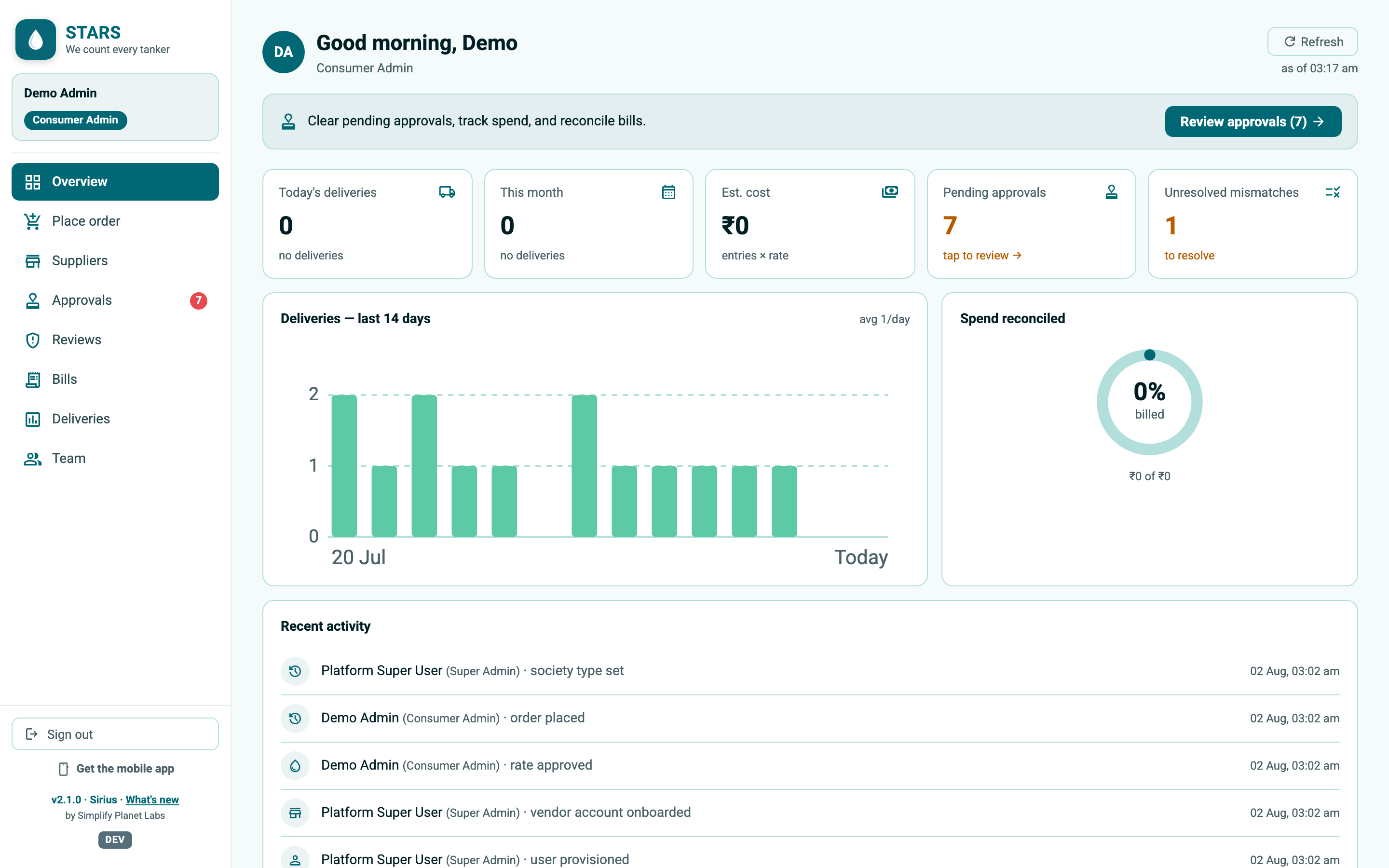
Use Refresh (top-right) to pull the latest figures; the "as of" time tells you how fresh they are.
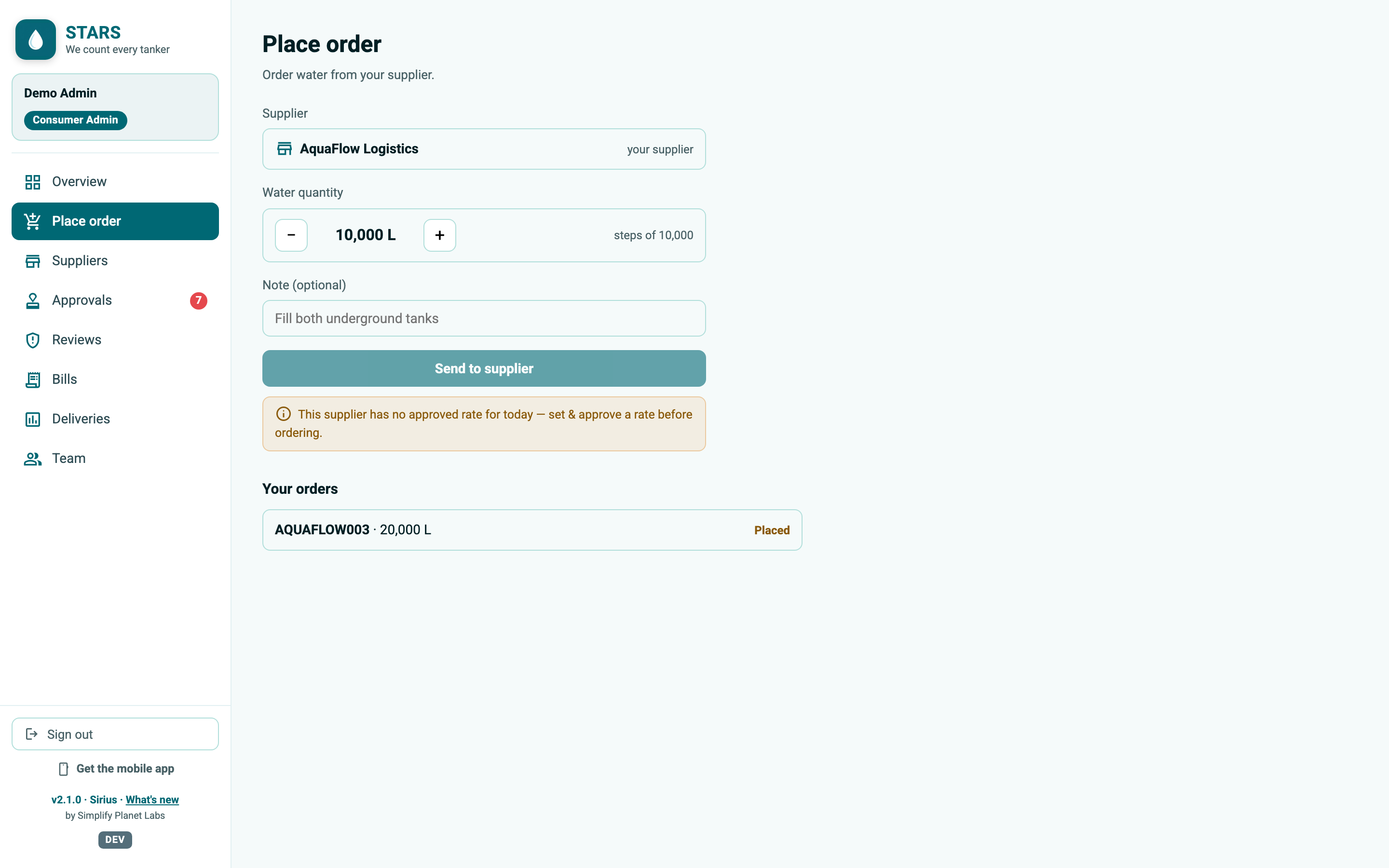
Order water from a supplier you are connected to. Open Place order.
Order statuses read Placed → Accepted → Partly delivered → Fulfilled (or Declined / Cancelled).
If the supplier has no approved rate for today, the send button is disabled with the note: "This supplier has no approved rate for today — set & approve a rate before ordering." Approve a rate first (§4.8), then order.
When a supplier dispatches a tanker for one of your orders, it appears under Incoming. This is the gate hand-off: someone confirms each tanker as it arrives, with a live photo as proof.
Two lists are shown: Arriving now (tankers already in transit — these can be confirmed) and Assigned (queued; "Attached — the supplier will dispatch it shortly").
The gate photo is the evidence that this exact tanker arrived. Confirming an ordered delivery marks it Delivered straight away — no separate approval step — precisely because the photo was taken at the gate.
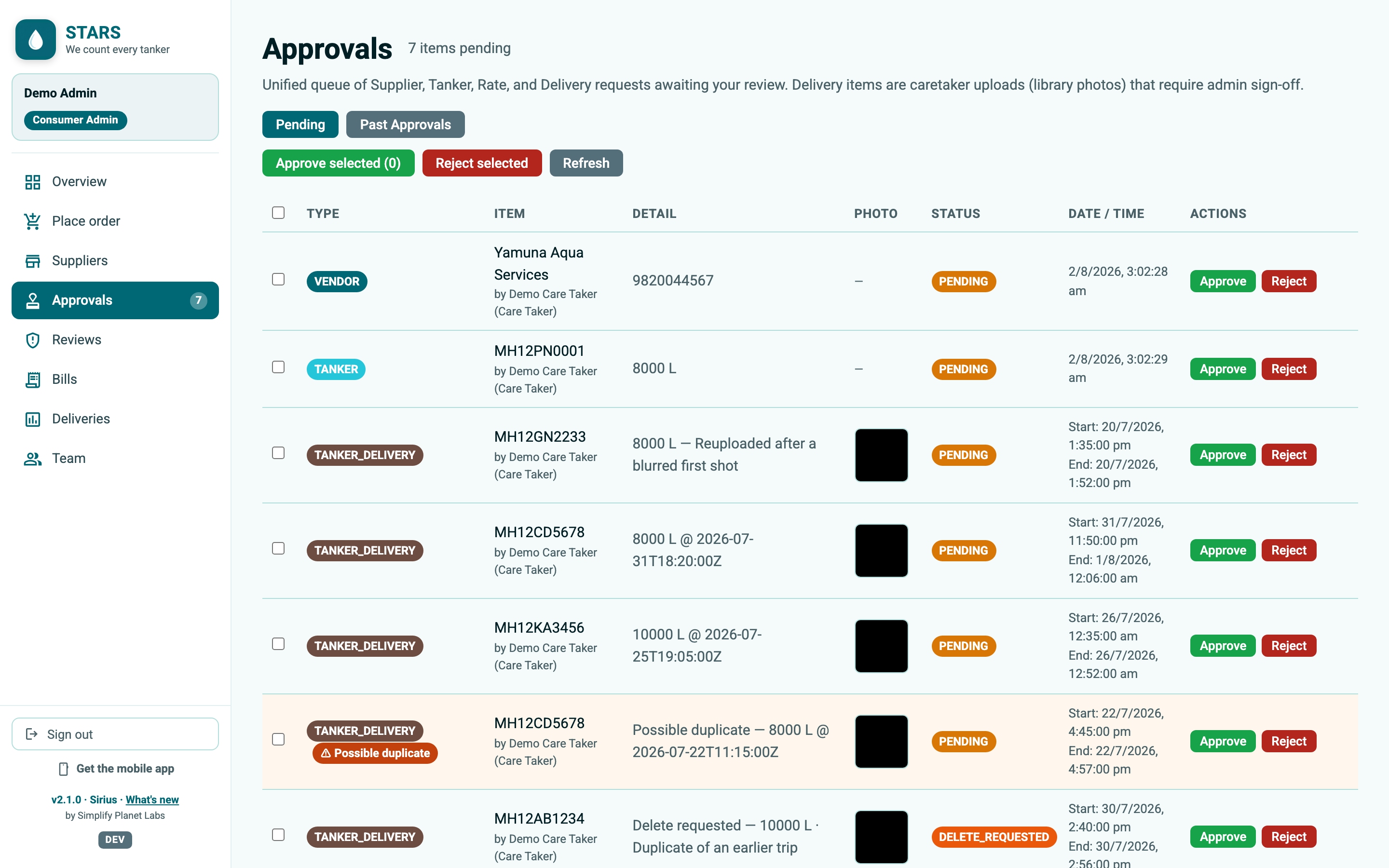
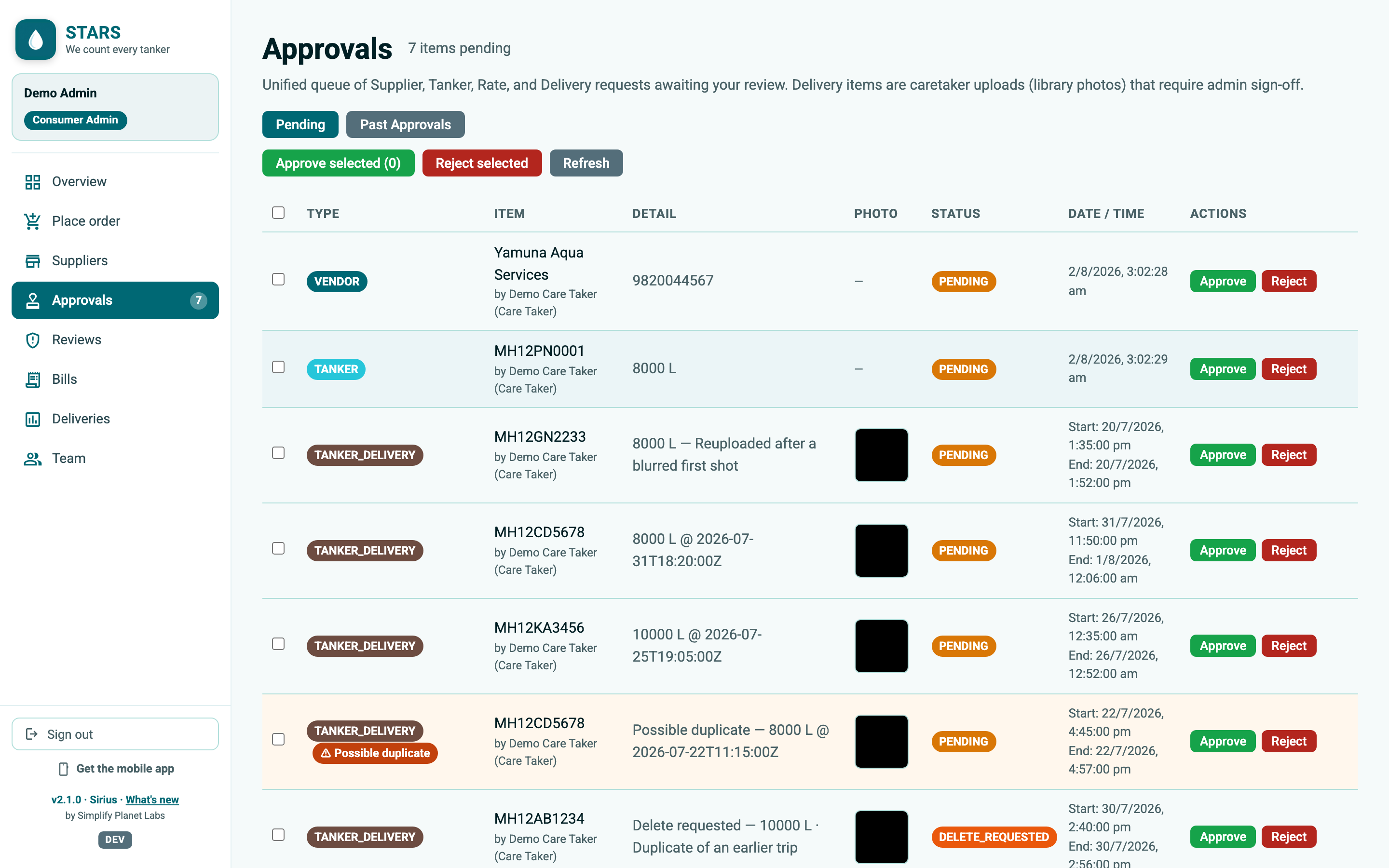
Approvals is one queue for everything that needs a yes/no decision: a new supplier, a new tanker, a rate change, and deliveries that need sign-off. (The pending count also shows as a red badge on the menu.)
A delivery recorded with the live camera by a Care Taker or Consumer Admin is approved automatically. A Security Guard's delivery, and a Care Taker's uploaded delivery, wait here for a Consumer Admin to sign off. The mobile app always uses the live camera; the web portal has no camera, so a delivery logged on the web is an upload — a Care Taker's web delivery is therefore reviewed, while a Consumer Admin's is recorded directly.
A suspected duplicate is flagged with a ⚠ Possible duplicate badge and held for the admin's decision. The Past Approvals tab shows what was decided, by whom and when, with a date filter.
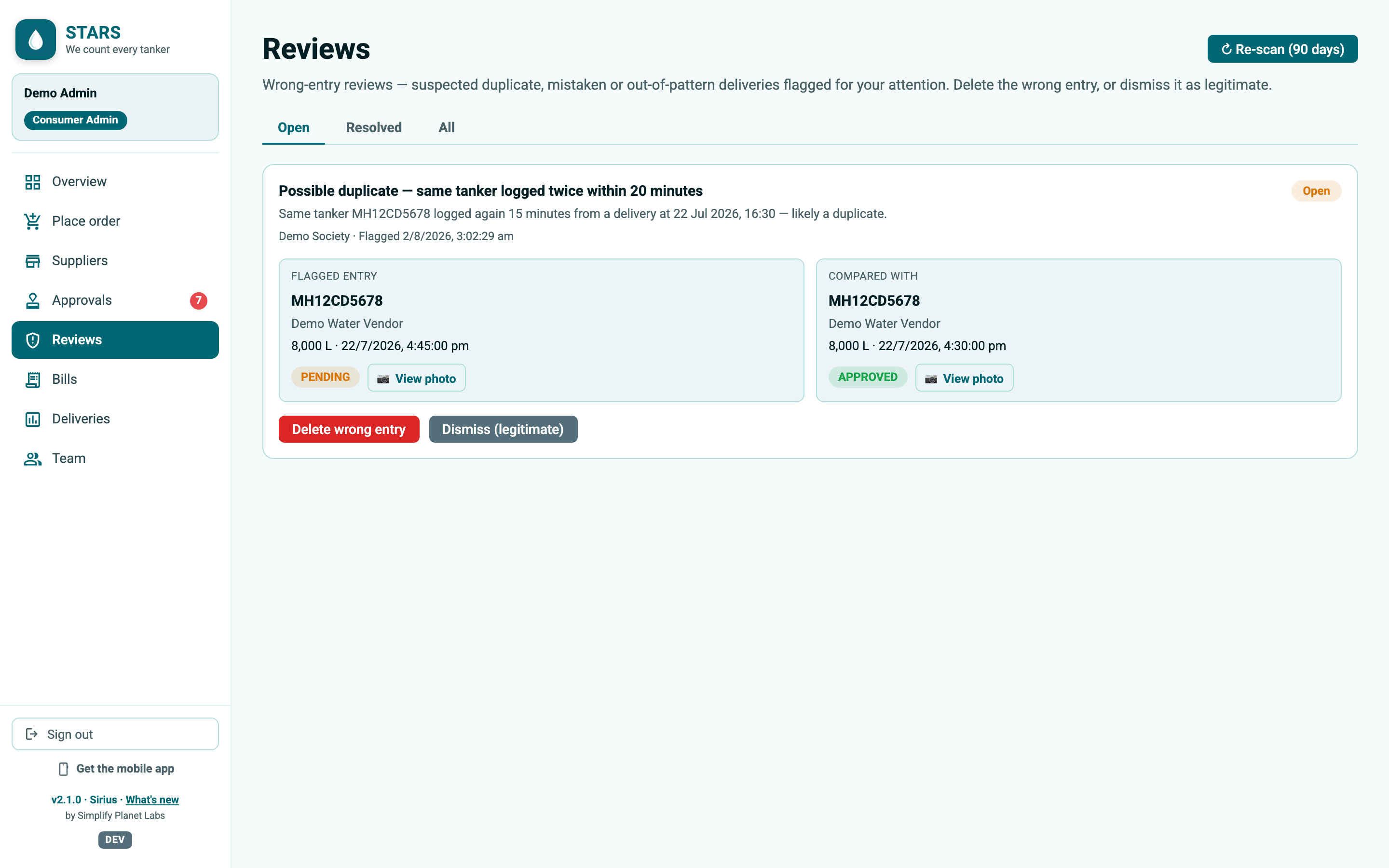
Where Approvals handles requests people raise, Reviews handles problems STARS spots on its own — the same tanker logged twice within a few minutes, or a cost that looks out of pattern. Each review shows the flagged entry next to the one it clashes with, side by side with their photos.
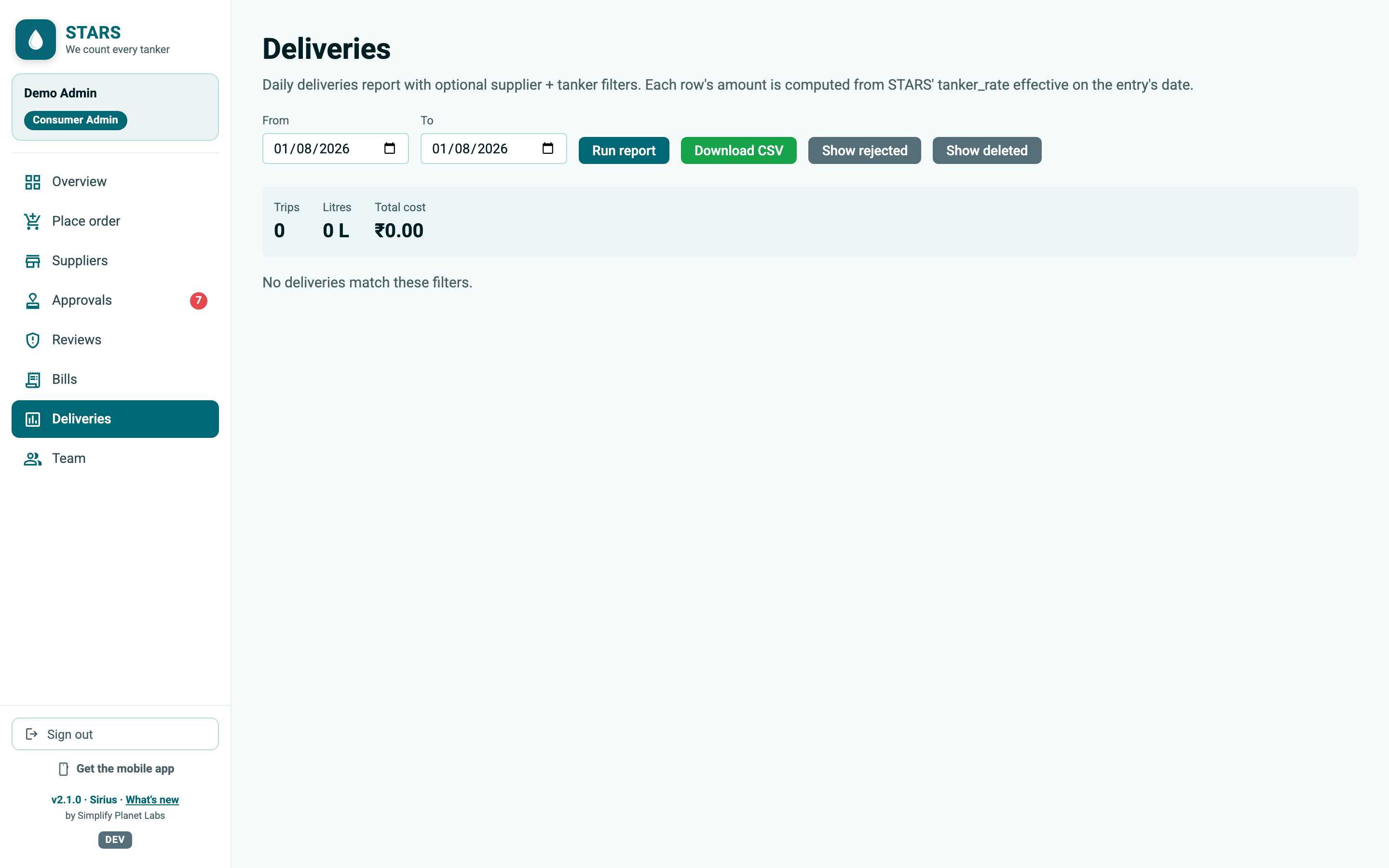
Deliveries is your delivery register — every tanker, with quantity, rate, amount, how it was captured (Live or Upload), its approval status and photos. It opens on the current month.
A completed delivery shows as Delivered; in-flight order tankers read In Queue or In-Transit.
A Care Taker can select rows and choose Request deletion, pick a reason, and send them to a Consumer Admin. Flagged rows show Delete pending and stay in the totals until the admin approves. Admins can also Show deleted and Restore a delivery.
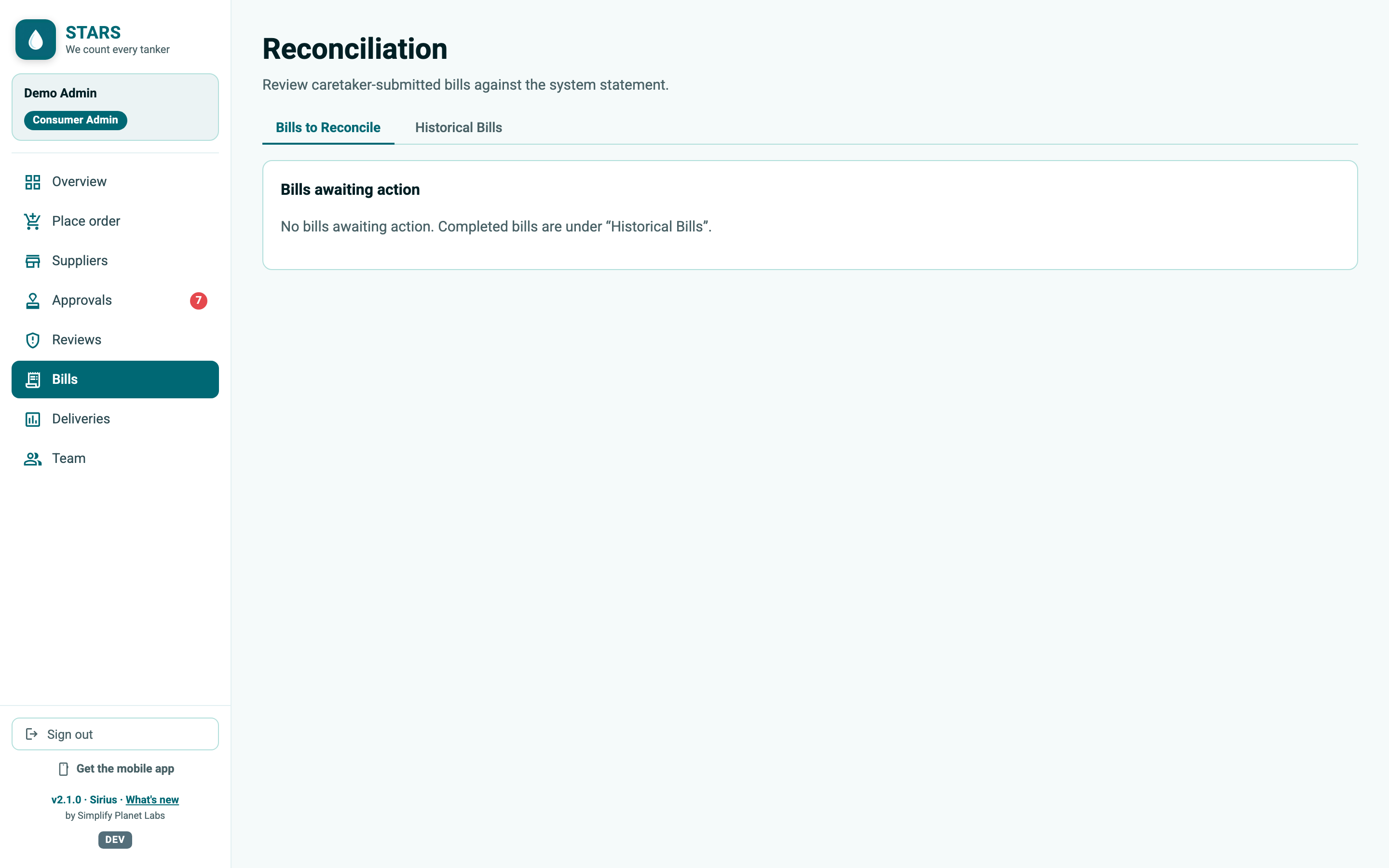
At month-end you match each supplier's paper/PDF bill against what STARS recorded, then get it approved and paid. Open Bills. There are two money conversations here: your supplier's water bill, and (if applicable) your STARS platform bill from Simplify Planet Labs LLP — each handled the same maker-and-checker way.
Under Bills awaiting action, choose Review, read the comparison, then either Approve Bill (a comment is required) or Resend for correction. Once approved, the Care Taker uploads the payment proof to complete the cycle. Completed bills live under Historical Bills.
When a reconciled supplier bill is sent for approval, STARS now matches the entered totals against the deliveries it recorded for that month. If everything lines up, the bill is approved automatically and moves straight to payment — no waiting on a manual step. If something is off — the amount is higher or lower than expected, the quantity differs, or a rate does not match — the bill is held for the Consumer Admin with the reason shown, so a person always decides the exceptions. (If the underlying deliveries or rates aren't approved yet, STARS simply holds the bill until they are.)
Committee members can open Bills to see what was billed and reconciled, but cannot create, approve or pay anything.
Some suppliers now raise the monthly bill for you, straight from the deliveries they recorded. Instead of typing figures off a paper bill, you receive it already itemised — every delivery with its date, tanker and litres, plus the totals for Litres, Trips and Cost — and automatically matched against the deliveries in your own records.
You can still reconcile a bill yourself from your own records (above), or receive one your supplier raised and matched for you. Both end the same way — approved by your admin, with a PDF invoice on file.
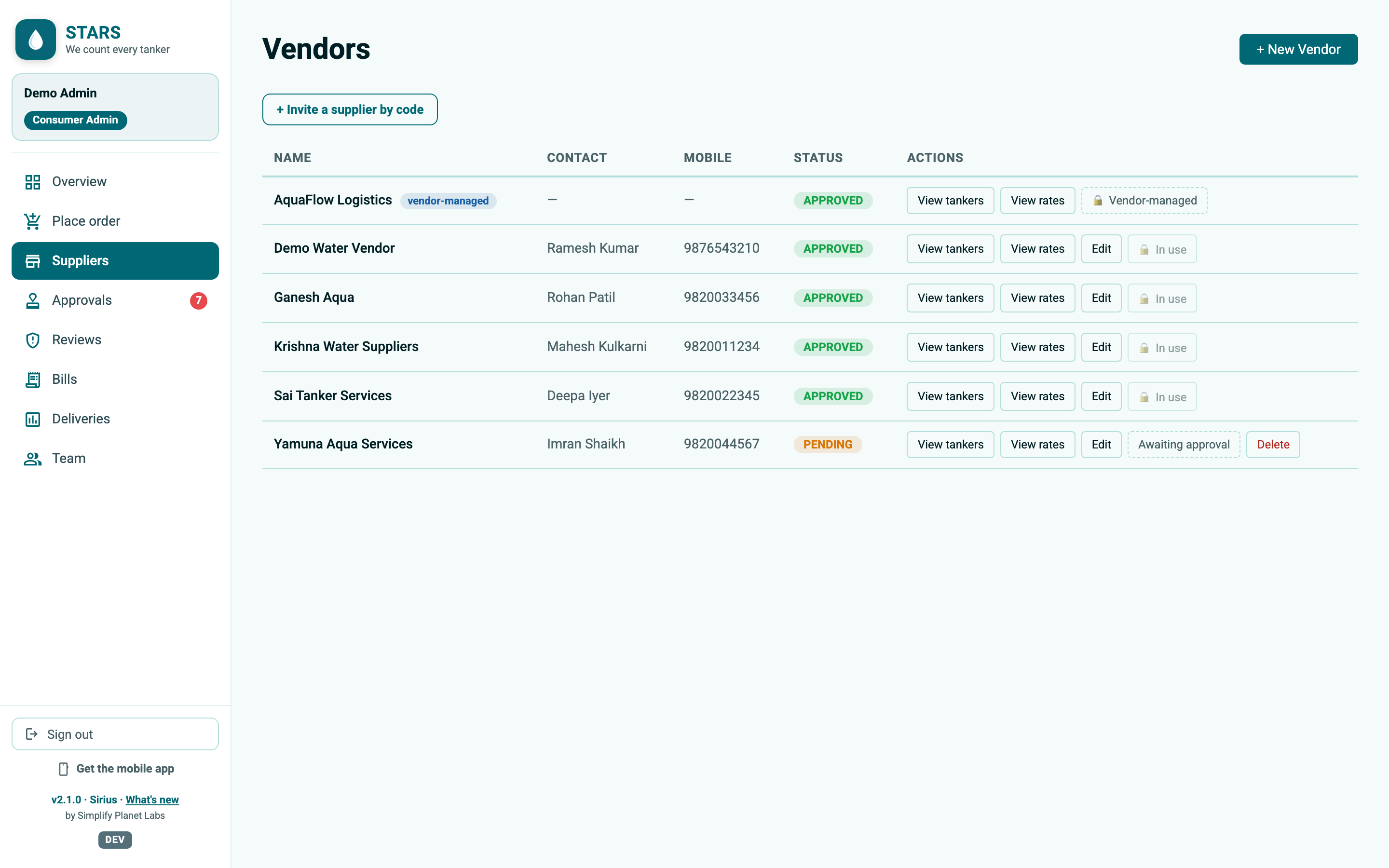
Open Suppliers to manage who supplies your water. You can add a supplier of your own, or connect to a supplier that already uses STARS.
Each supplier row has View tankers and View rates. From there you can add tankers, and add or edit rates (rate history is kept, with statuses such as Approved, Pending, or locked when a rate has been used in a bill).
Two things can happen here:
When you are connected to a supplier's STARS account, that supplier manages its own tankers and rates — those rows show 🔒 Vendor-managed / Set by supplier and you approve rate changes rather than editing them. You can still add and record from other suppliers as usual — only the water you shared is shared, never your bills or residents.
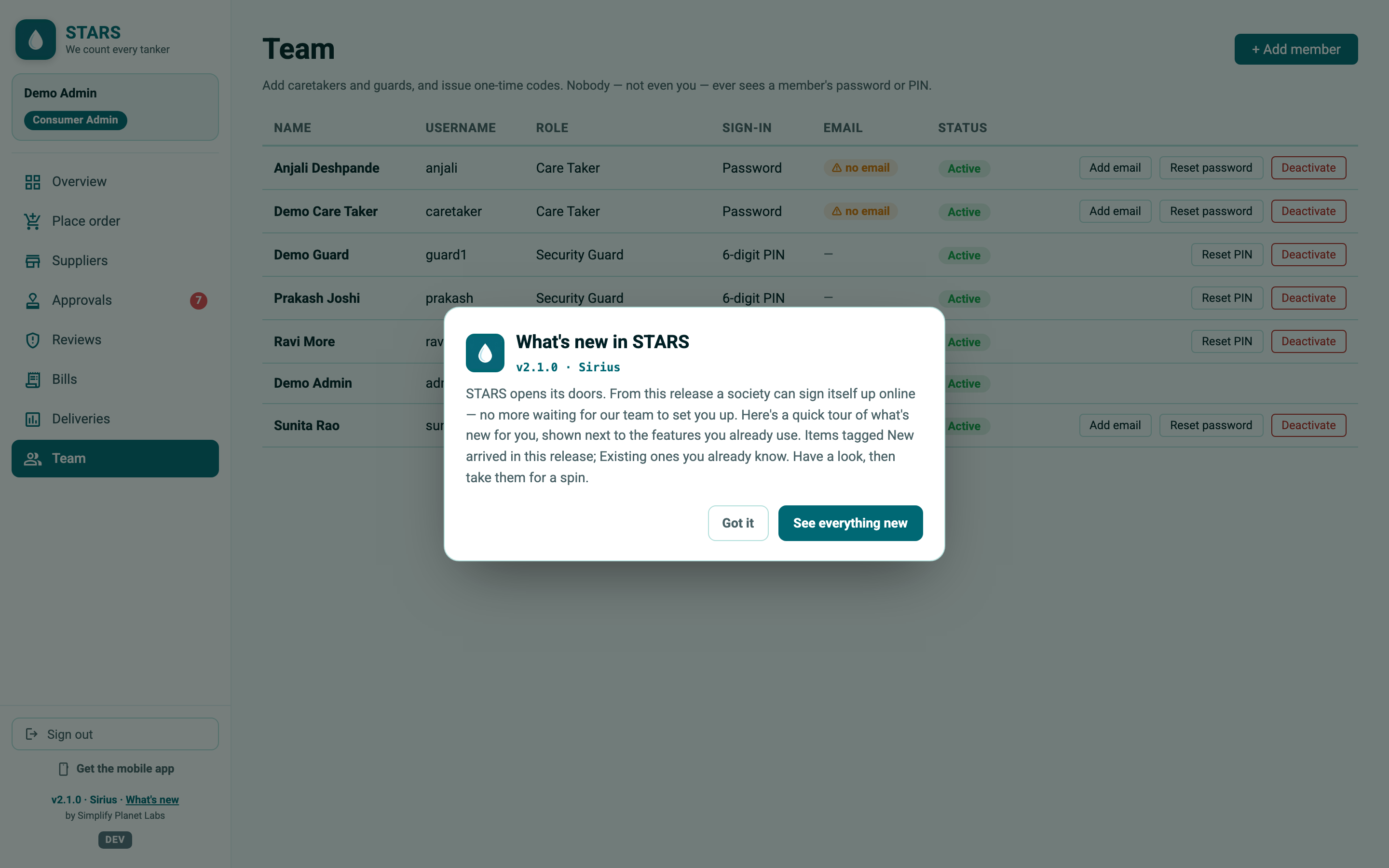
Open Team to add members and issue one-time sign-in codes. Nobody — not even you — ever sees a member's password or PIN.
Per member you can also Reset PIN / Reset password (issues a fresh code), Deactivate / Reactivate, and add or edit an email.
Adding a new admin is a handover: the moment the new person activates their account, the current admin is automatically deactivated — an organisation has exactly one active admin. STARS warns you before you do this.
This section is for water suppliers — vendors and distributors — and their staff. Signing in as a supplier opens the supplier console, available on both the web and the mobile app. Both supplier roles run day-to-day operations; a few actions are reserved for the Supplier Supervisor (adding a tanker, proposing a rate), and the Supplier Owner additionally approves your STARS bill.
On-app Orders come from customers on a Pro plan. When a Pro customer serves through you, you can receive and act on their orders — and manage that customer's deliveries, fleet and rates — right in the app, in two situations:
Either way, our team approves the link first, then it goes live.
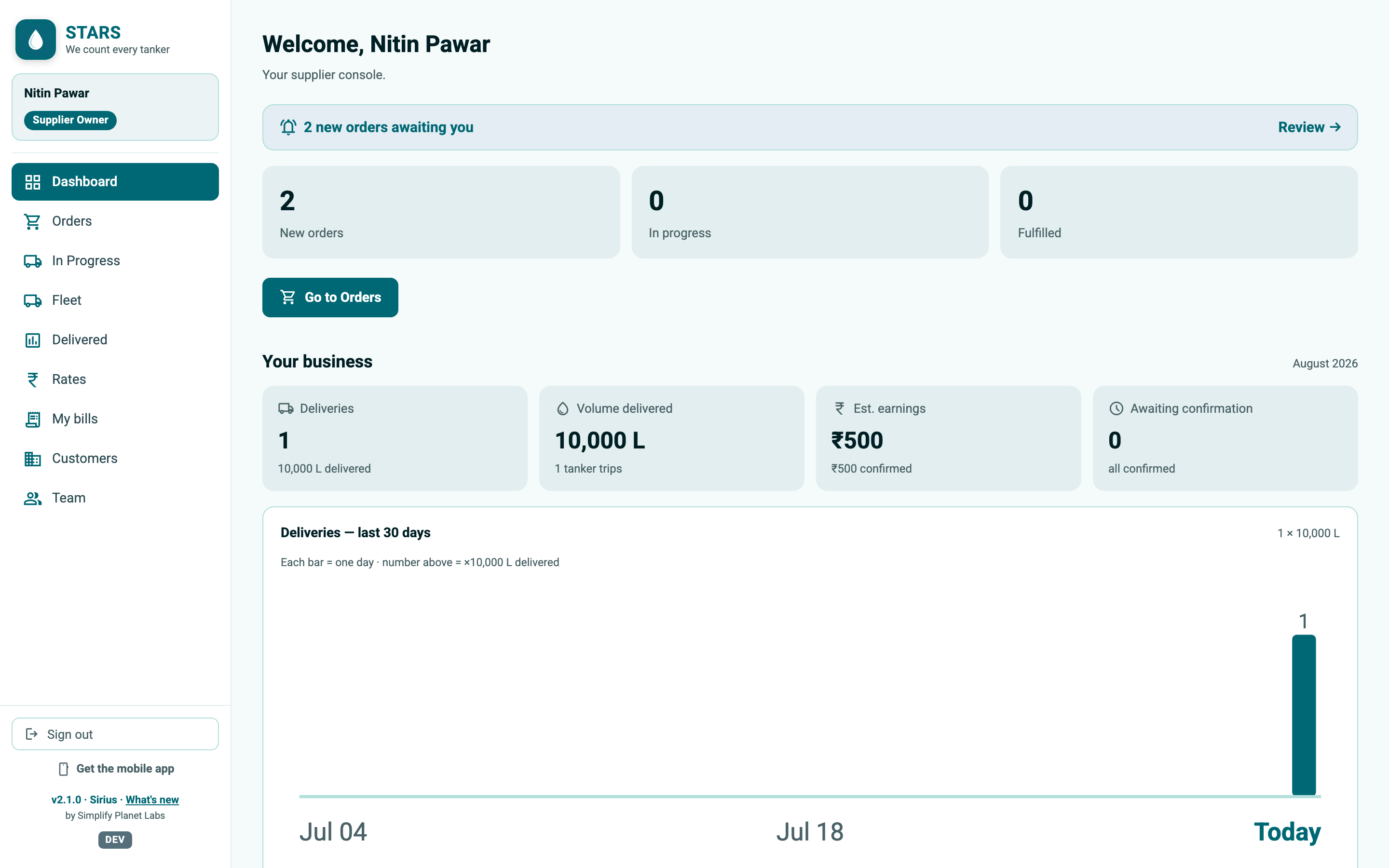
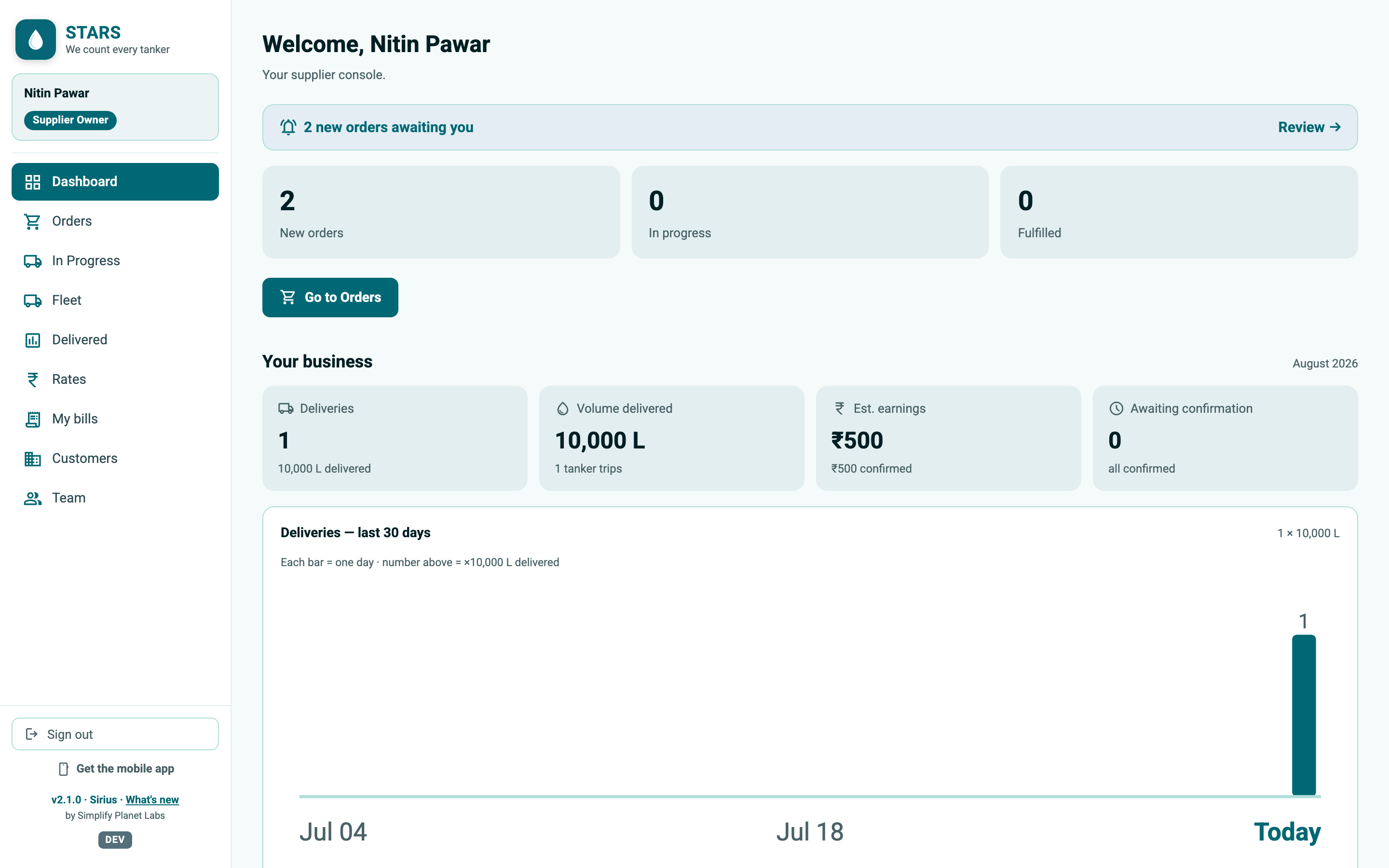
The supplier Dashboard greets you and surfaces orders that need attention, then shows this month's business: New orders, In progress and Fulfilled counts, plus Deliveries, Volume delivered, Est. earnings and Awaiting confirmation. Charts include Deliveries — last 30 days (each bar is a day; the number above is in units of 10,000 litres), an earnings trend, earnings by customer, and a confirmed-vs-awaiting split. Choose Go to Orders to act.
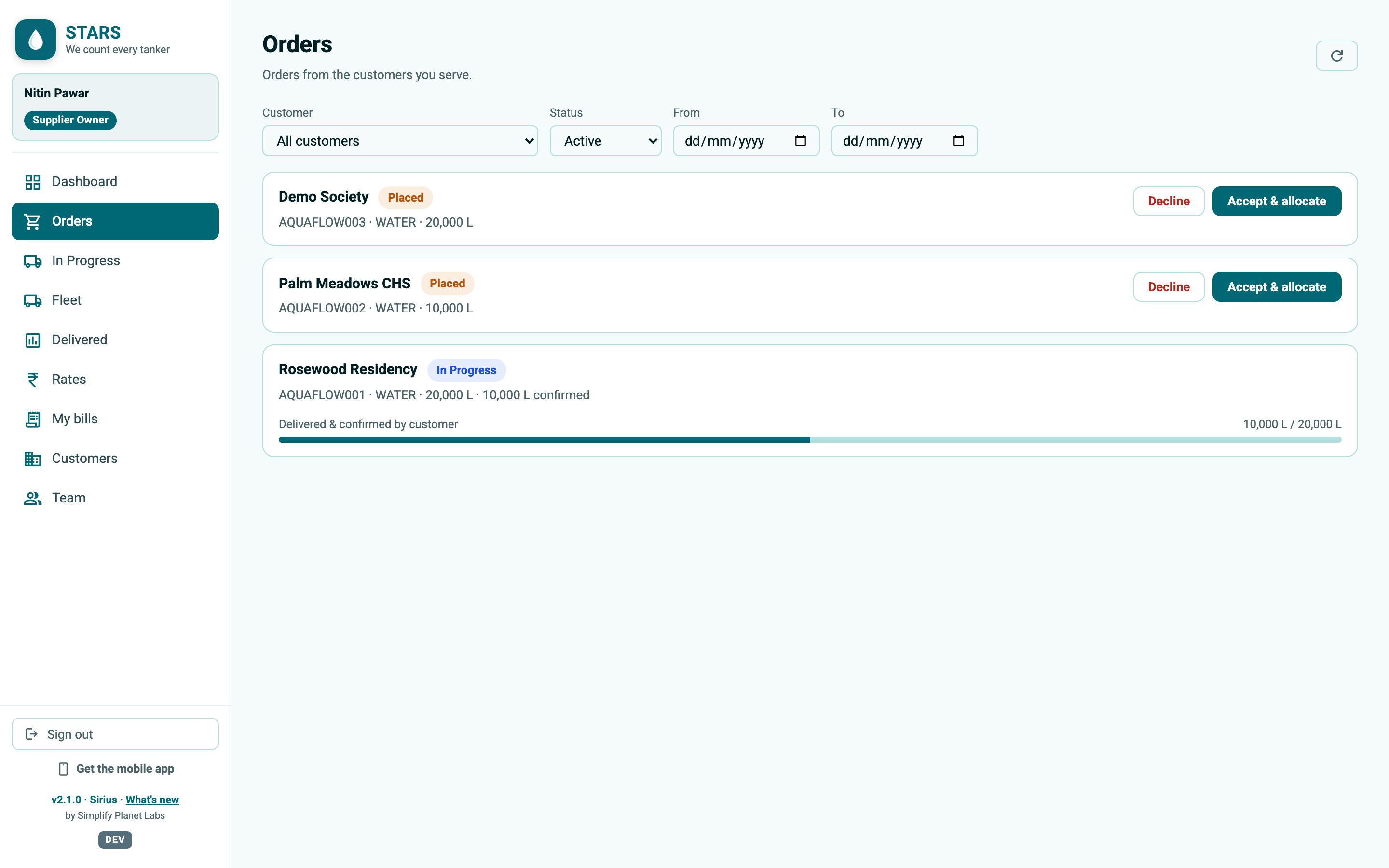
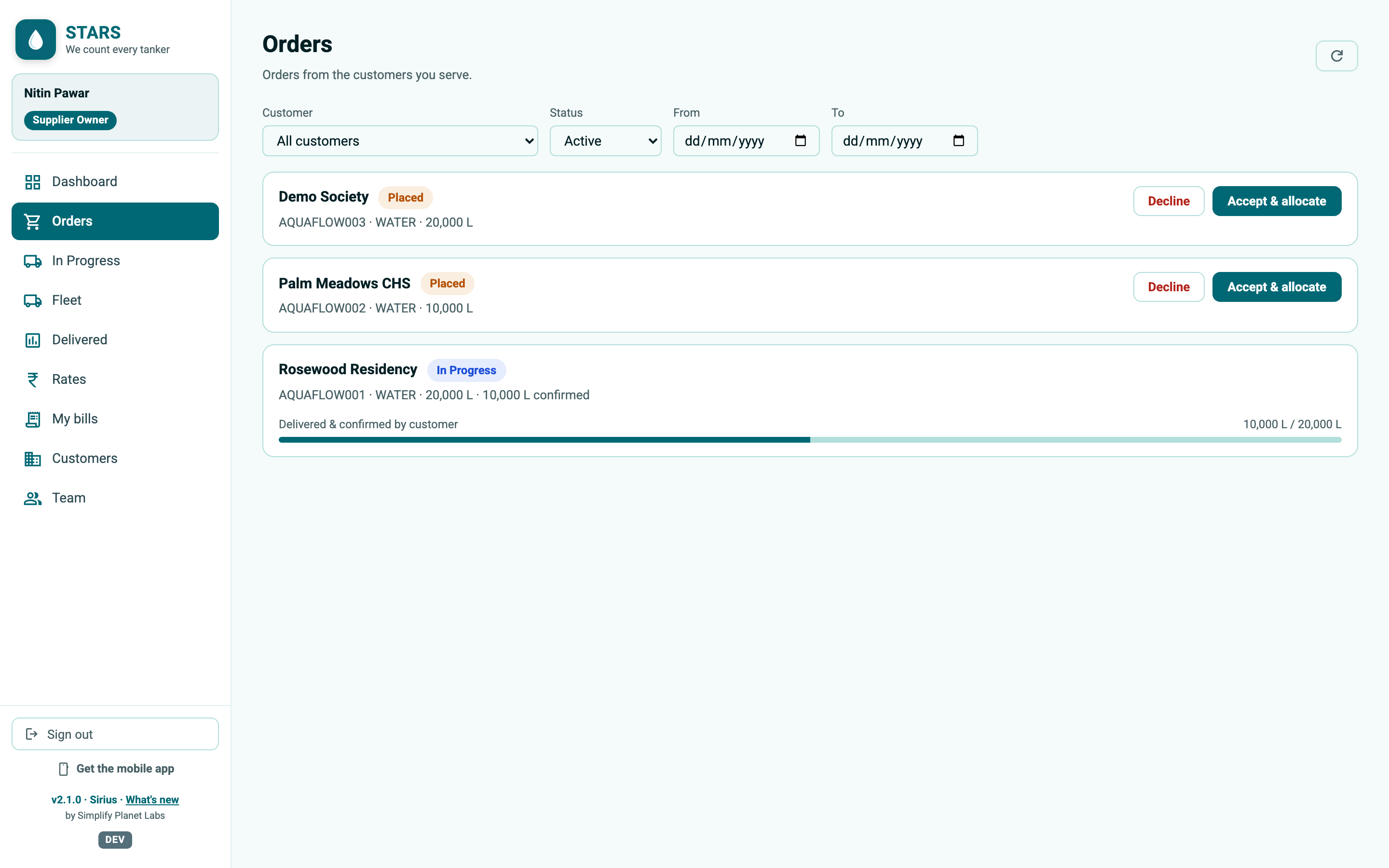
Open Orders to see orders from the customers you serve. By default the Status filter shows Active orders; you can also filter by Customer and date. Order status reads Placed → Accepted → In Progress → Delivered.
If there is no approved rate for the period, STARS blocks acceptance: "No approved rate for this period — propose a rate to this customer first, then accept." Propose a rate (§5.6) and let the customer approve it.
A trip is one tanker-load against an order. A large order becomes several trips (shown as 1/3, 2/3, 3/3). Each trip travels through In Queue → In-Transit → Delivered.
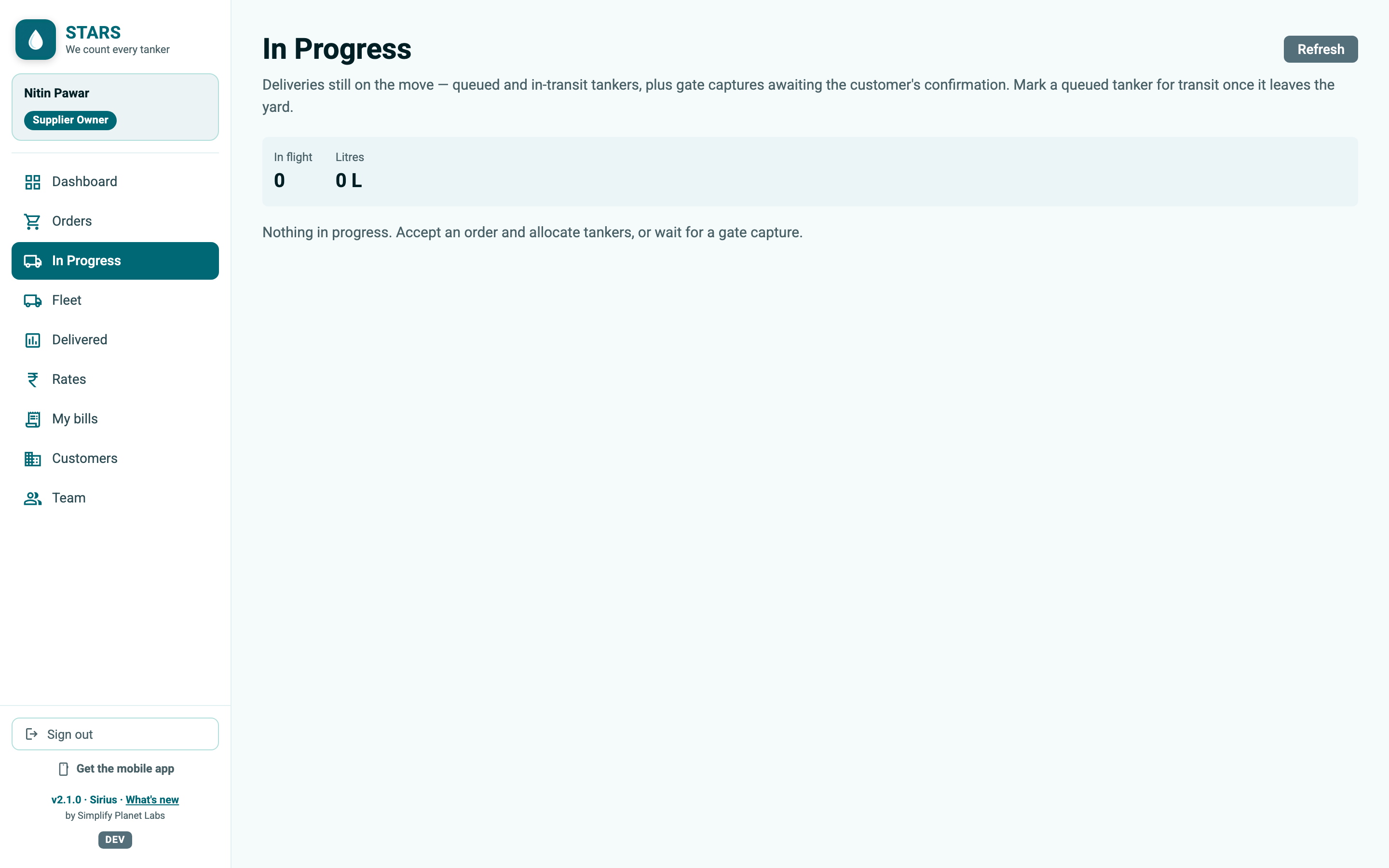
In Progress lists every delivery still on the move: queued and in-transit trips, plus gate captures awaiting the customer's confirmation. When a queued tanker leaves your yard, choose Mark for Transit on it — the customer then sees it under Incoming as Arriving now and confirms it at their gate.
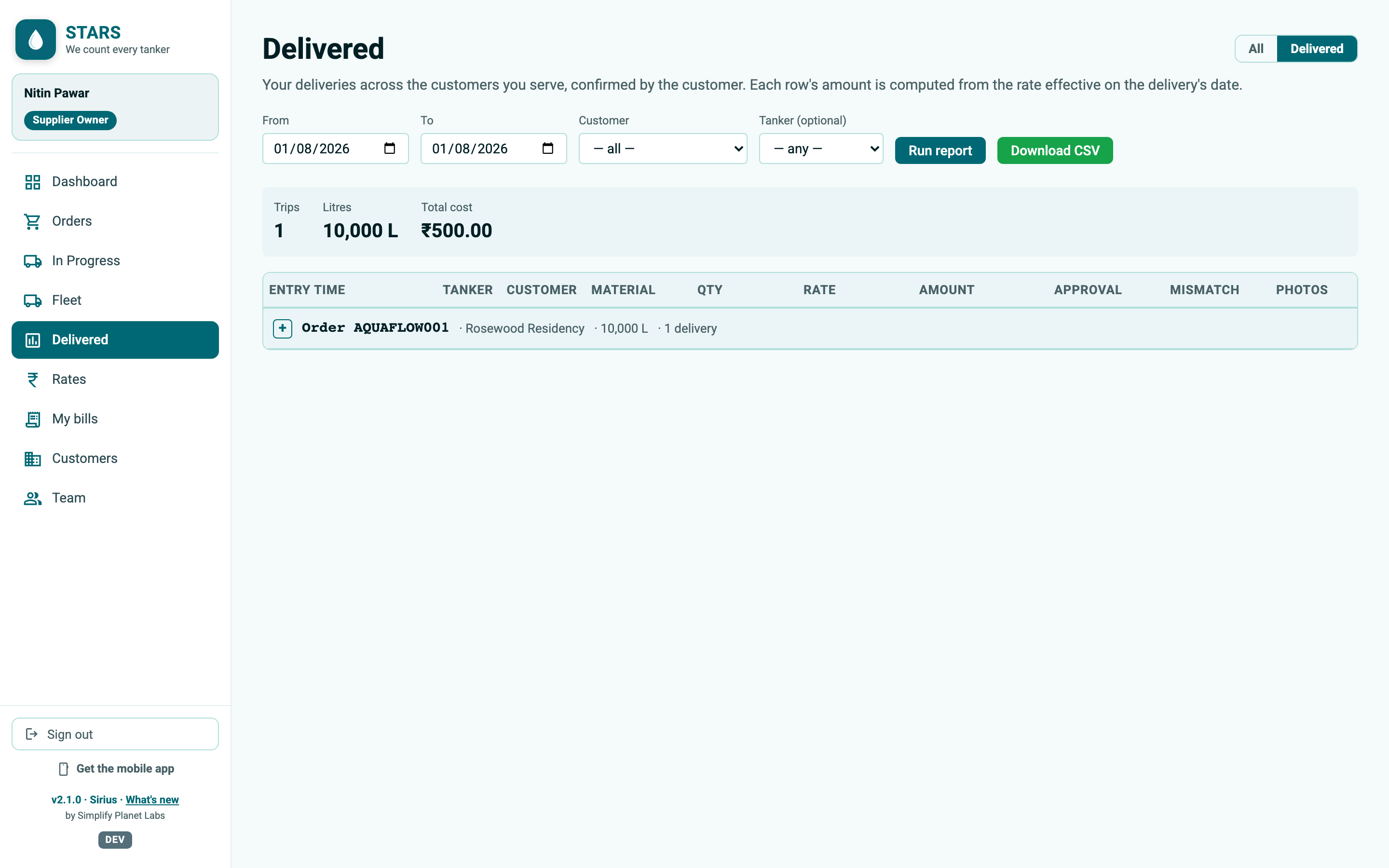
Delivered is your completed-deliveries report across every customer you serve, confirmed by the customer. Rows are grouped by order (with a "Direct deliveries" group for gate captures with no order); each amount is computed from the rate that was effective on the delivery's date. Filter by date, customer, tanker or material; see the Trips / Litres / Total cost summary; and Download CSV. The All toggle widens the view to full history including rejected rows; click 📷 View to see any delivery's photos.
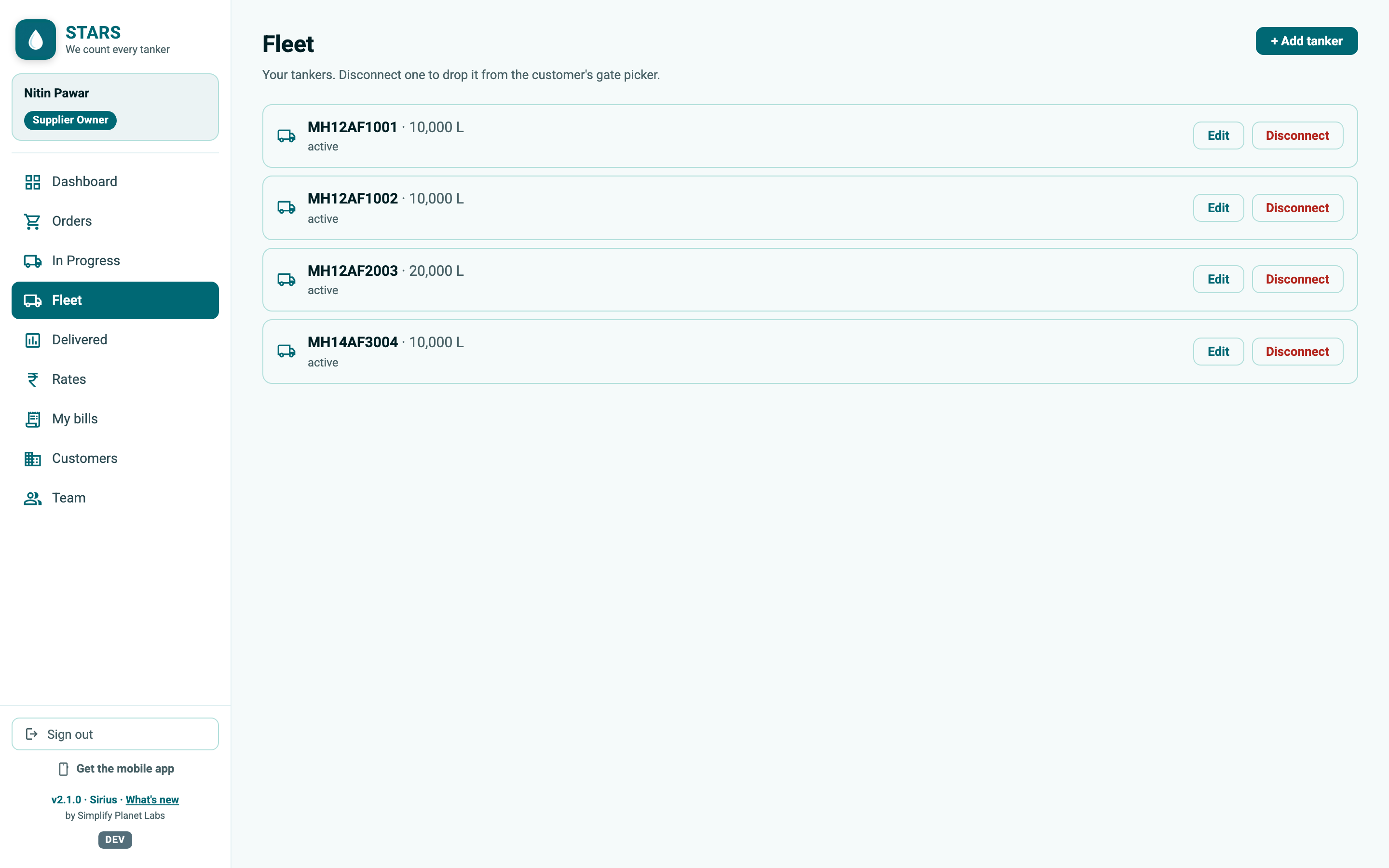
Fleet is your list of tankers. A Supplier Supervisor can + Add tanker (enter the tanker number and a capacity in multiples of 10,000 L). Either role can Edit a tanker, or Disconnect / Reconnect it — a disconnected tanker drops out of the customer's gate picker.
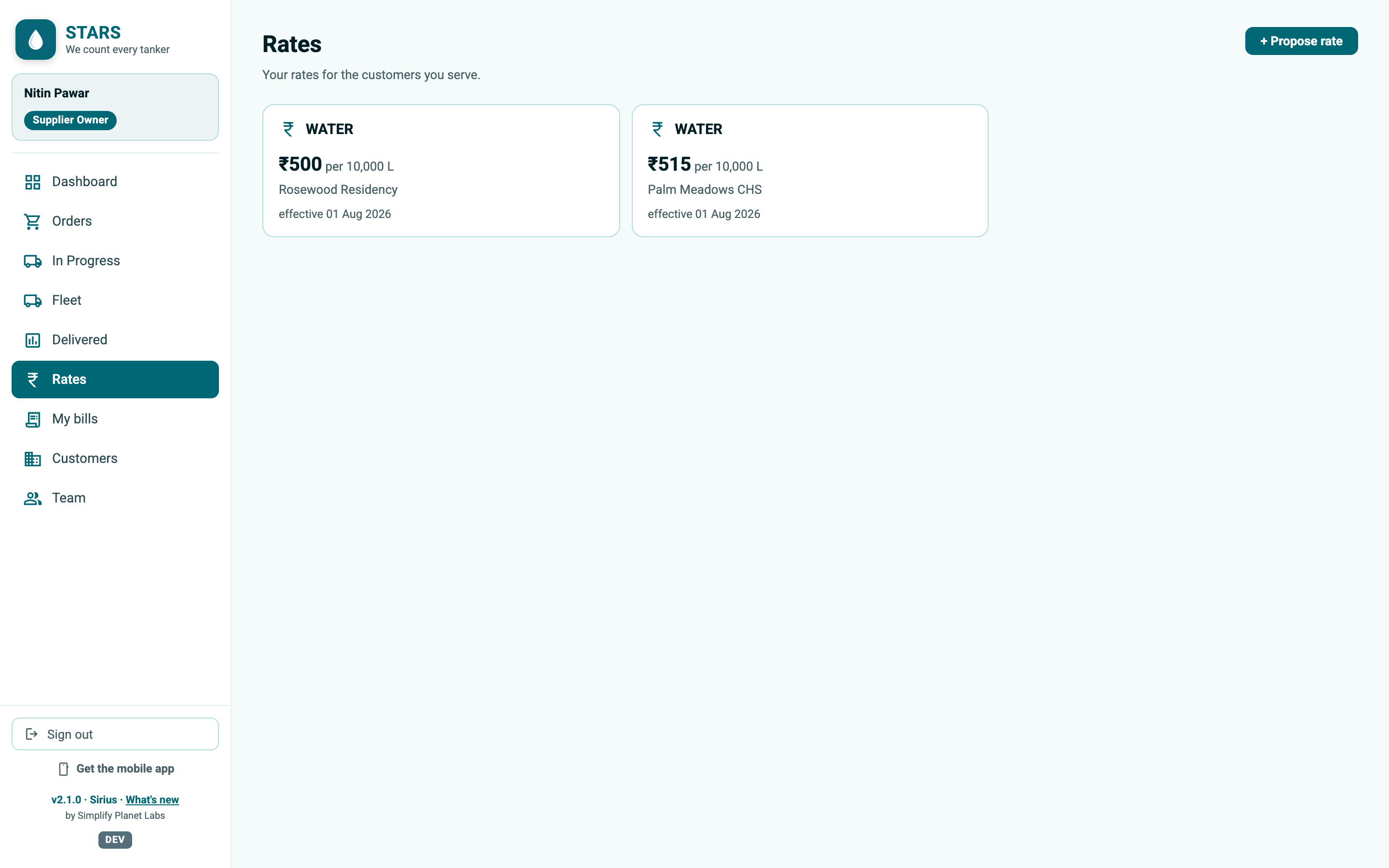
Rates shows what each customer pays. A Supplier Supervisor can + Propose rate:
A rate cannot start before the date the customer connected with you. If you type an earlier date, STARS shows: "The rate can't start before you linked with this customer." The Effective from field is capped to that link date for you.
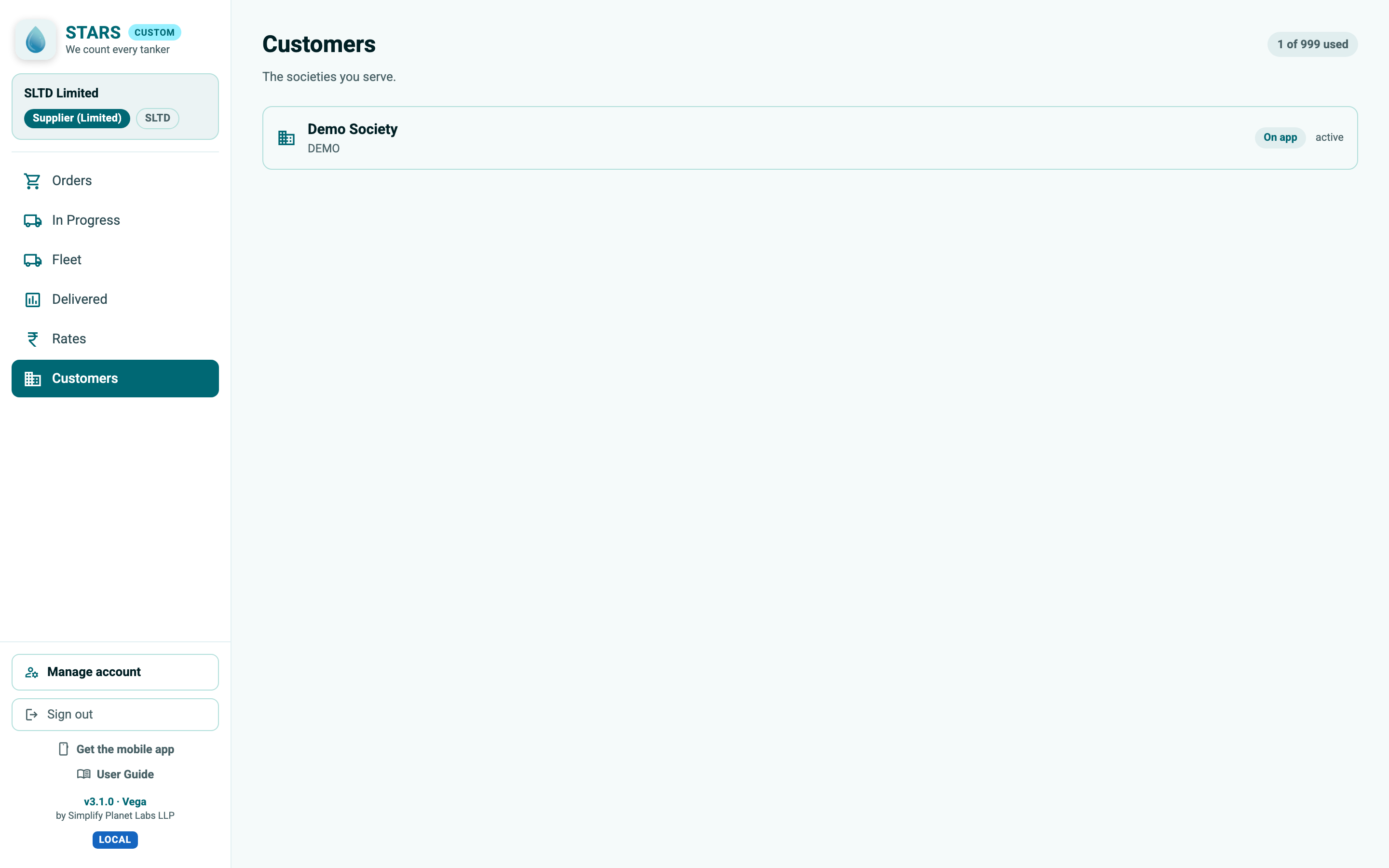
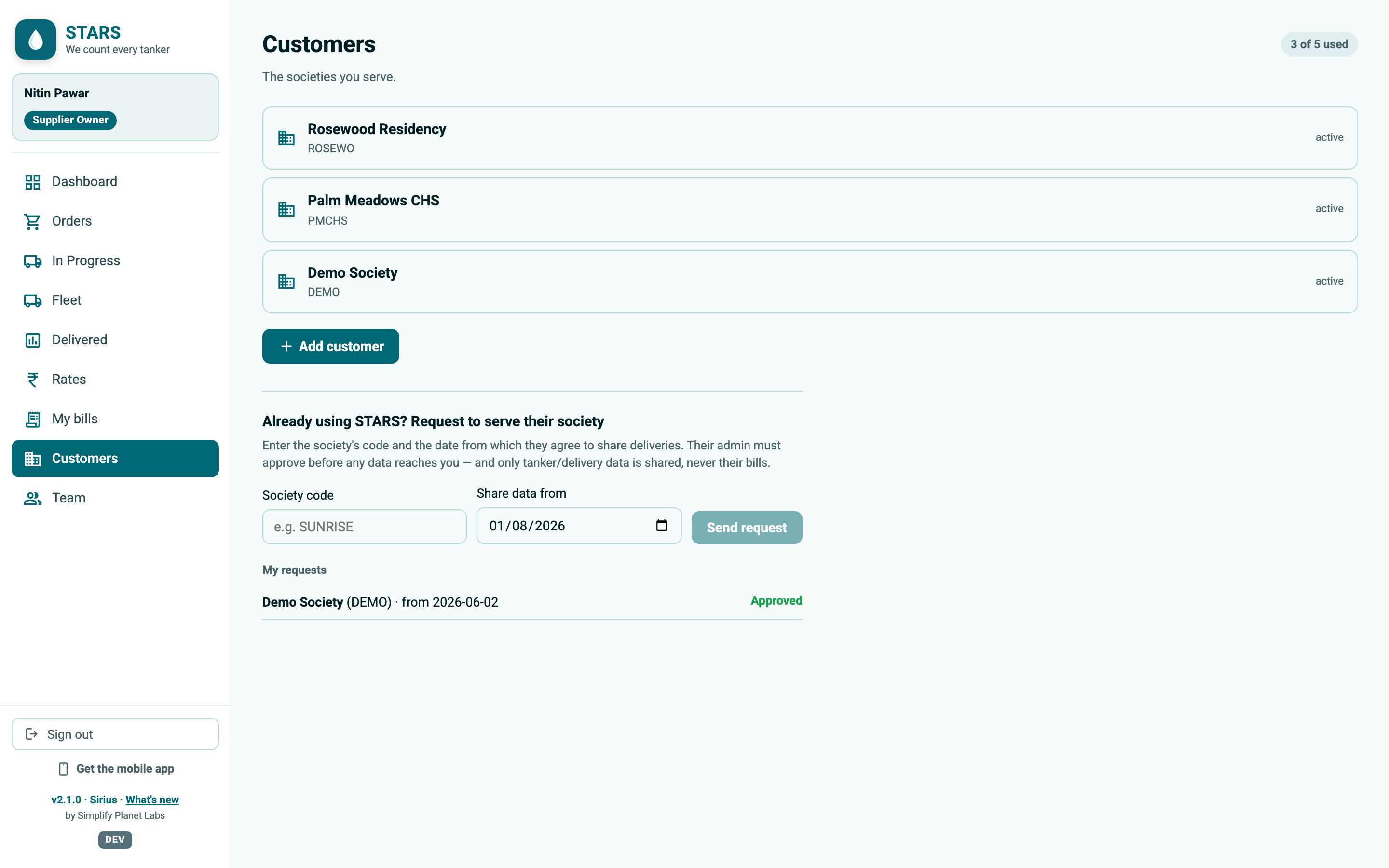
Customers lists the organisations you serve, with a "{used} of {max} used" limit. You need at least one active tanker in your fleet before you can add customers. You can bring a brand-new customer on board, or connect to one already on STARS.
New customers start as a pilot — they get SAMPLE invoices only — until Simplify Planet Labs LLP verifies them.
Under Already using STARS?, enter the society's Society code and the Share data from date, then Send request. Their admin must approve before any data reaches you — and only tanker/delivery data is shared, never their bills. You will also see Invitations from consumers (accept or decline) and the status of My requests.
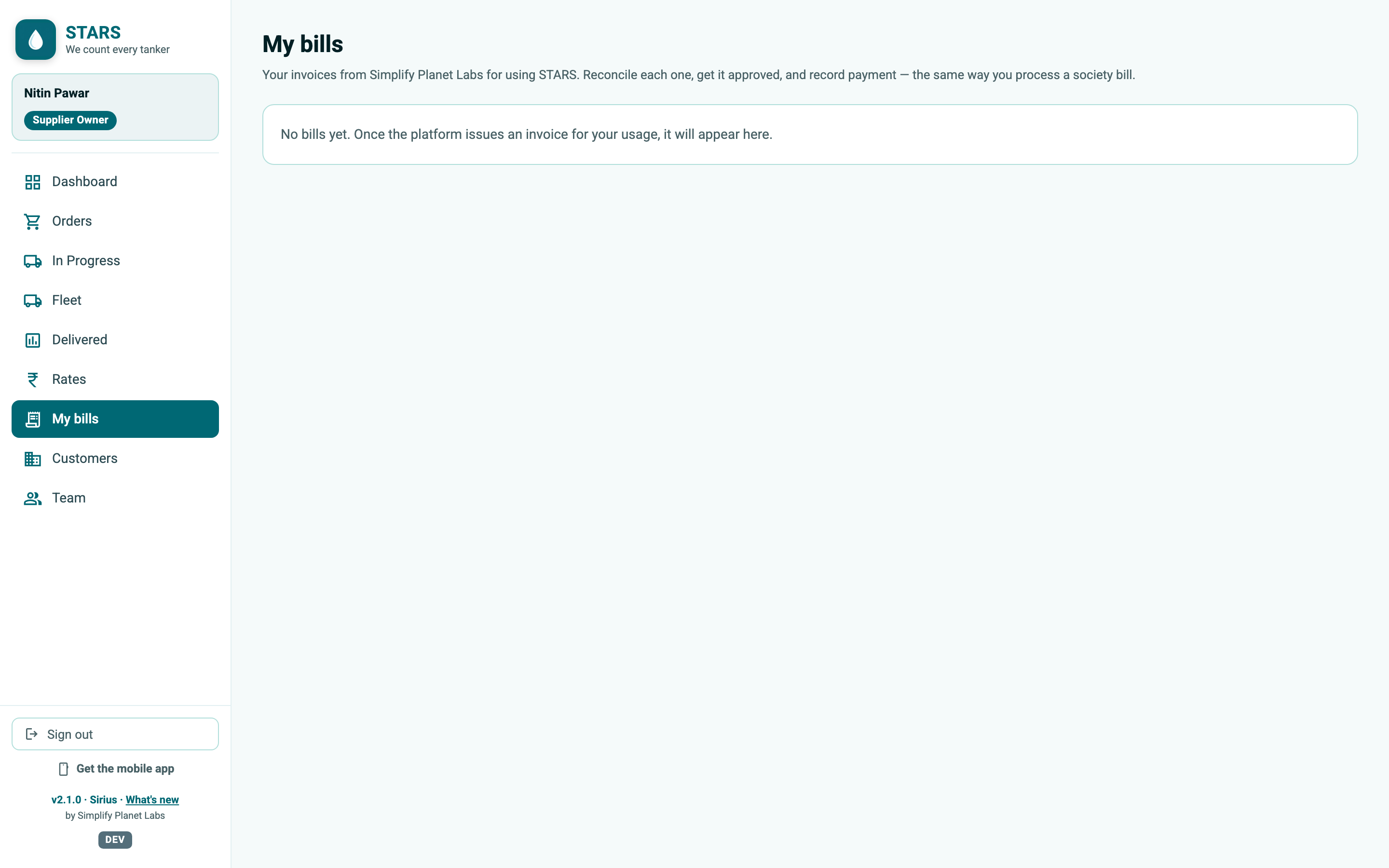
My bills holds your own invoices from Simplify Planet Labs LLP for using STARS — processed exactly like a customer bill, in a maker-then-checker flow. The Supervisor reconciles each invoice (Reconcile → confirm the figures → Send for approval); the Owner reviews and chooses Approve bill or Resend for correction; then the Supervisor records payment by attaching the transaction screenshot. Status chips run from To reconcile through Approved — pay to Completed.
If you have no separate owner, a lone Supervisor can approve too — so a single-person supply business is never blocked.
Once your deliveries for a customer are confirmed (§5.4), turn them into that customer's monthly bill — no spreadsheets, no re-typing. Open Customer Bills.
Each bill also generates a clean PDF invoice your customer can download and keep. The mobile supplier console has the same Customer Bills tile, so you can raise and track bills from your phone too.
While a customer is on a pilot, the bills you raise are stamped SAMPLE — a preview of how billing will look, never a real amount due — until Simplify Planet Labs LLP verifies the account.
Some customers you supply are not on STARS at all. You can still keep their deliveries and bill them — one-sided — from Off-app billing (on the web supplier console, and the Off-app tile in the mobile app). Everything is per-customer: add the customer, set a price, record each supply, then raise an invoice from all the un-billed deliveries.
The mobile Off-app tile runs the whole flow — add a customer, set the rate, capture deliveries with the camera, generate the invoice — so a supervisor can record and bill an off-app customer right at the point of delivery.
On the Pro plan, the supplier console has a Reports section that brings three views together, so you can see at a glance what you've delivered, what you're owed, and what you still need to bill:
The gate is where STARS earns its keep, and the gate is a phone. This section covers what is special about the mobile app: recording deliveries with a live photo, working with no signal, and syncing safely. Everything in Sections 4–5 that your role can do is also here; the tasks below are the ones that are best (or only) done on the phone.
The mobile sign-in is the same three fields as the web — Your Code, Username, and one Password or PIN field (staff type a password; guards type their 6-digit PIN). Two things to know:
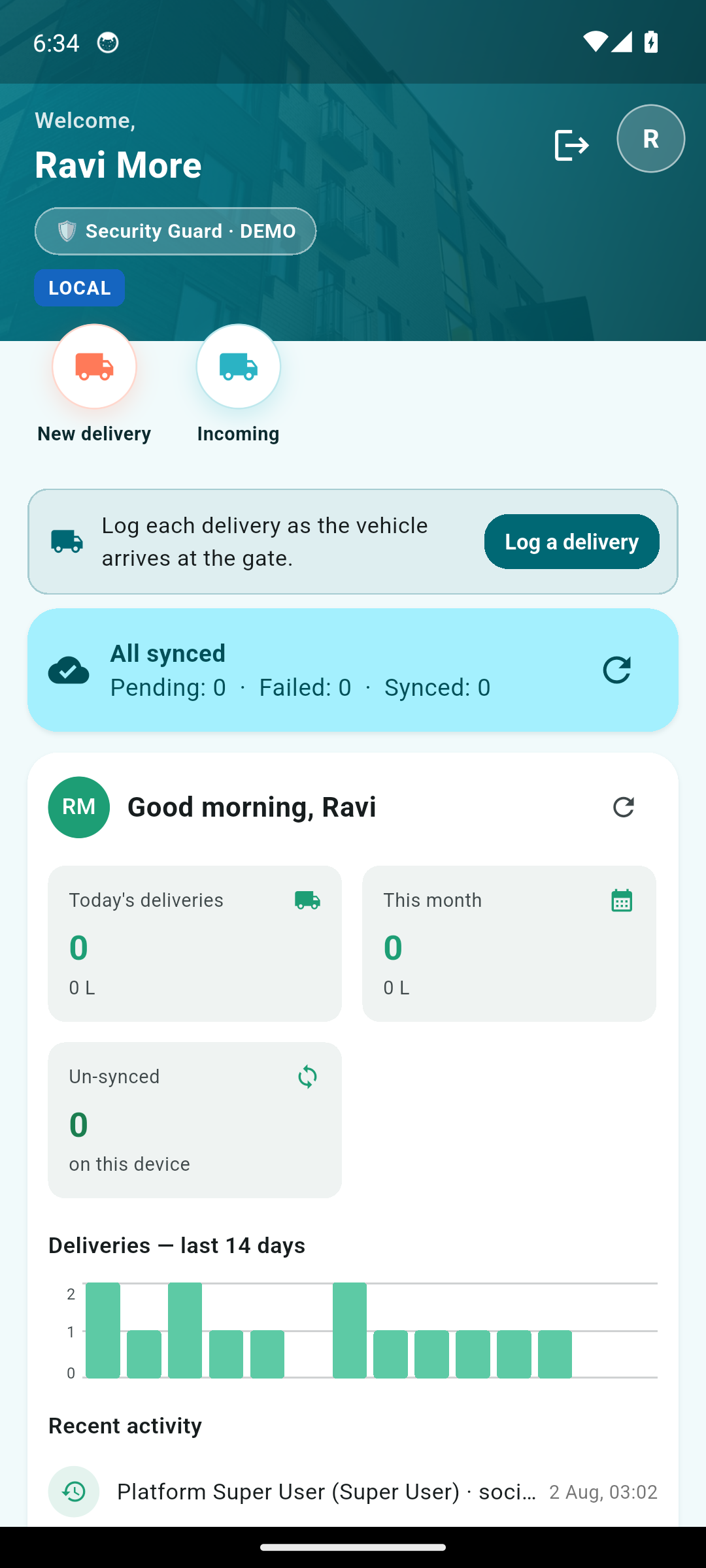
Open New delivery (also called Log a delivery). Capture is vehicle-first — you choose the tanker and STARS fills in its supplier, material and capacity — and a photo is required.
When you pick a tanker, STARS now checks whether it already has a delivery in progress — for example an Incoming order that hasn't been confirmed at the gate yet. If it does, a message asks you to clear that delivery first and Submit Entry stays disabled until it is — so a capture never quietly fails to record later. Once the earlier delivery is confirmed (or removed), the same tanker records normally.
Every gate photo now carries its own capture time and, where your device allows it, the location it was taken. This is stored with the delivery to help confirm it happened where and when it should, and to strengthen the duplicate and anomaly checks. Our Privacy Policy & Terms were updated to v1.1 to describe this.
Some consumers record a tanker's entry and exit as separate steps, so the time it spends inside the gate is captured accurately. Where this is on, the New-delivery screen records the IN only — take the entry photo and tap Record entry (there is no exit time to set yet). The tanker then appears in an Inside now list. When it leaves, open Inside now, pick the tanker and tap Record exit to take the exit photo — that completes the delivery. If your consumer doesn't use gate in/out, capture stays a single step exactly as above.
In the app, every delivery photo is taken with the live camera at the gate — there is no "pick from gallery" option, so the shutter moment is always the recorded time. The web portal has no camera, so a delivery logged on the web is an upload instead, and a Care Taker is asked for a short Justification (the reason for logging it). In short — a live-camera delivery by a Care Taker or Consumer Admin is trusted immediately; a guard's delivery and a Care Taker's web upload go to Approvals first.
When you upload a delivery photo on the web, use a plain photo. STARS stamps its own date/time and reads the photo's capture time. Avoid GPS/stamp-camera apps: their burned-in location becomes part of the image and cannot be removed. (In the app this never applies — the live camera handles it for you.)
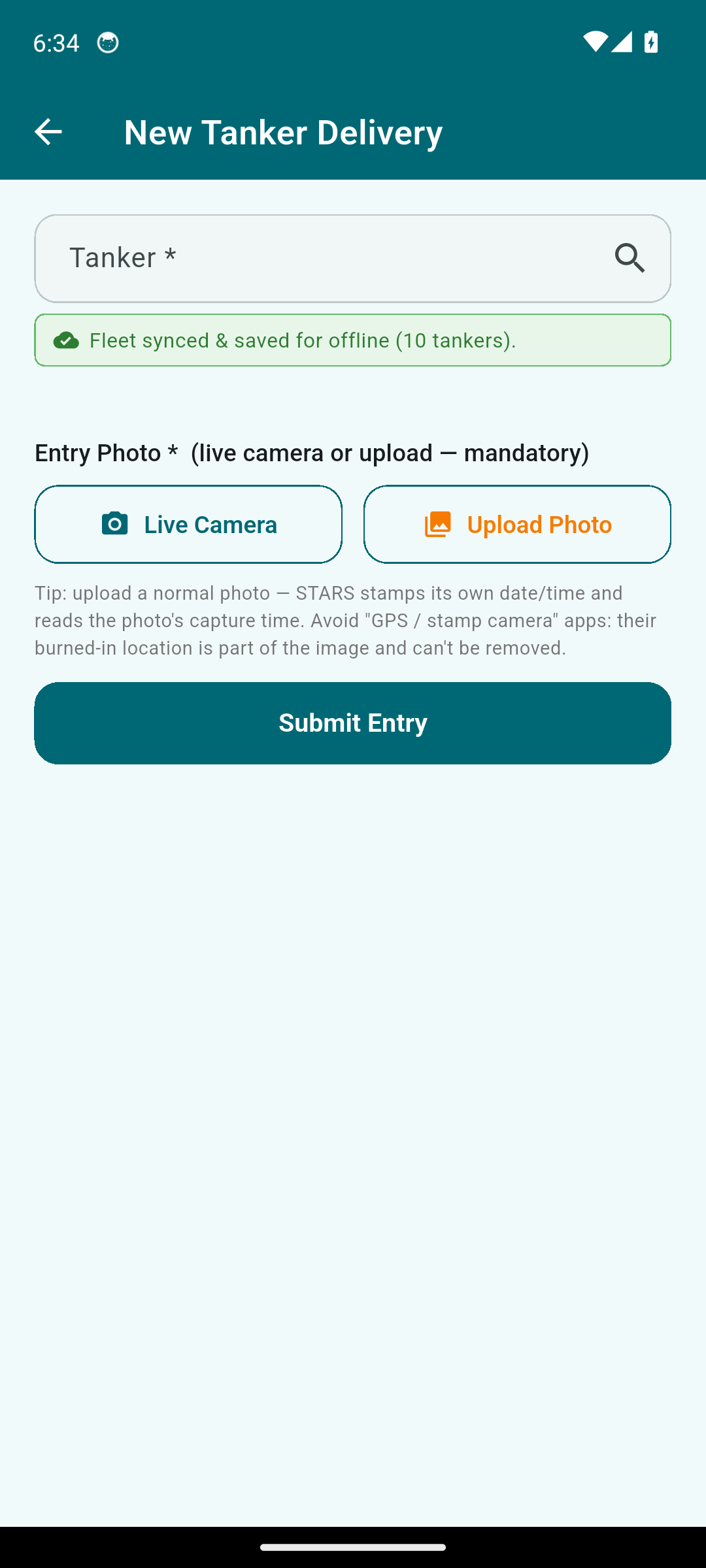
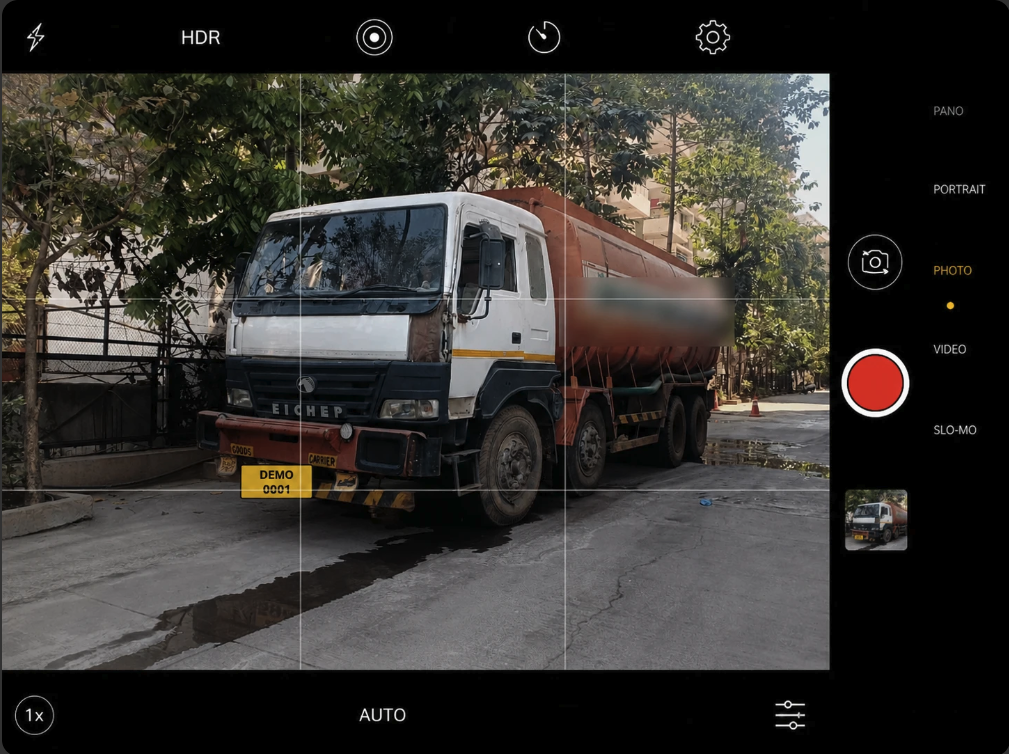
STARS is built to work where the signal isn't. Deliveries are saved on the phone first, then uploaded — so capture never fails at the gate. Your fleet list is cached too, so you can pick vehicles offline (a banner tells you whether it is synced or using the saved copy).
STARS syncs on its own — every 30 seconds while the app is open, the moment connectivity returns, and periodically in the background. A synced delivery is removed from the phone. The Sync status card shows All synced or Sync in progress with Pending / Failed / Synced counts and a Sync now button; the dashboard also has an Un-synced tile for this device.
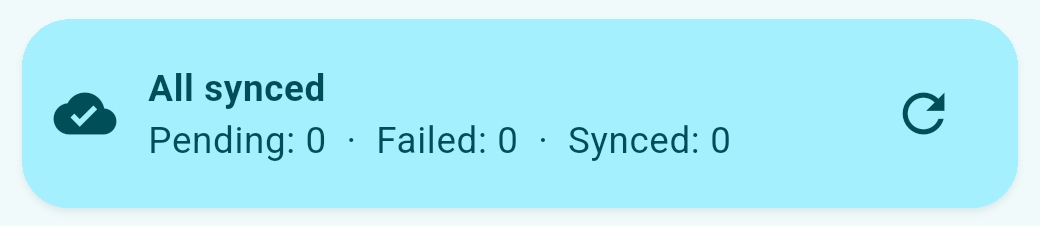
Signing out asks you to confirm (Sign out?). Crucially, if any deliveries on the phone have not yet uploaded, STARS refuses to sign out and shows Finish syncing first — "You have N unsynced deliveries on this device. Please reconnect and let them finish syncing before signing out." This protects a shared gate phone from losing records when the next person signs in.
Wait for the sync card to read All synced (or tap Sync now on a good connection) before signing out or passing the phone to the next guard.
STARS can notify approvers when something needs their sign-off; tapping the notification opens the Approvals screen. Push notifications are currently available on Android; the app asks permission after you first sign in. On iPhone, and any time, the pending-approval badge on your dashboard keeps you current.
If your organisation pays pay-as-you-use — a prepaid wallet that a small percentage of each tanker's cost is drawn from (see §7 Your wallet & account) — the mobile app now keeps everyone aware of the balance, so a delivery is never lost to an empty wallet.
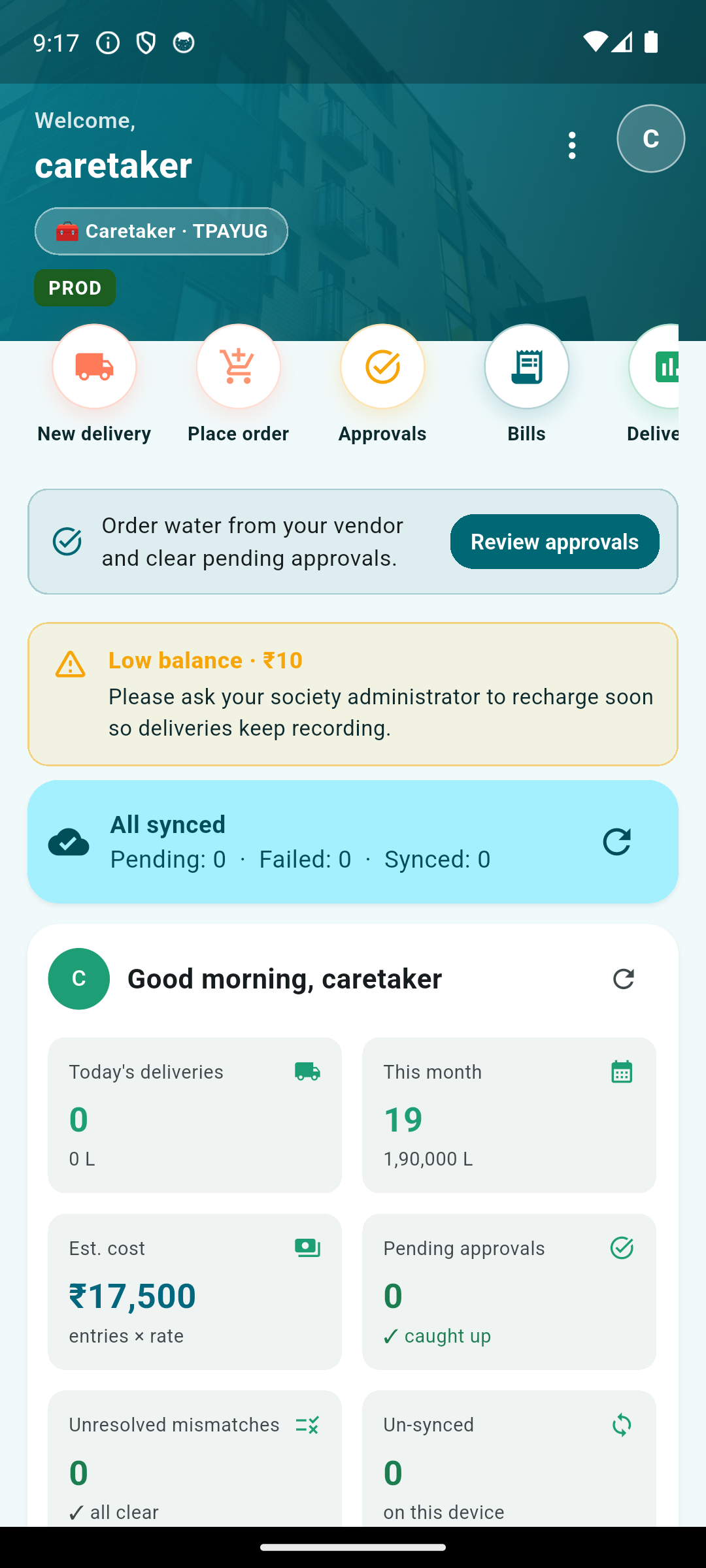
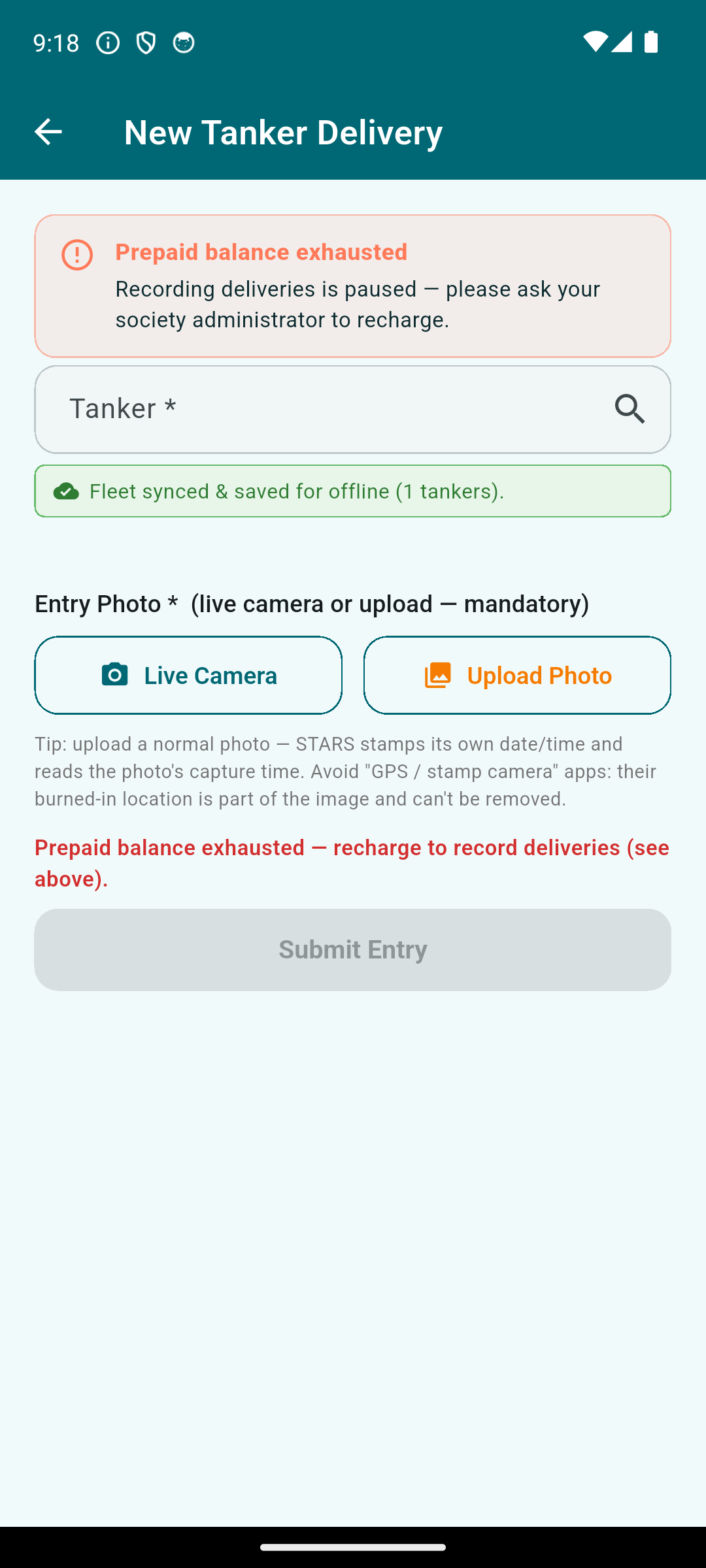
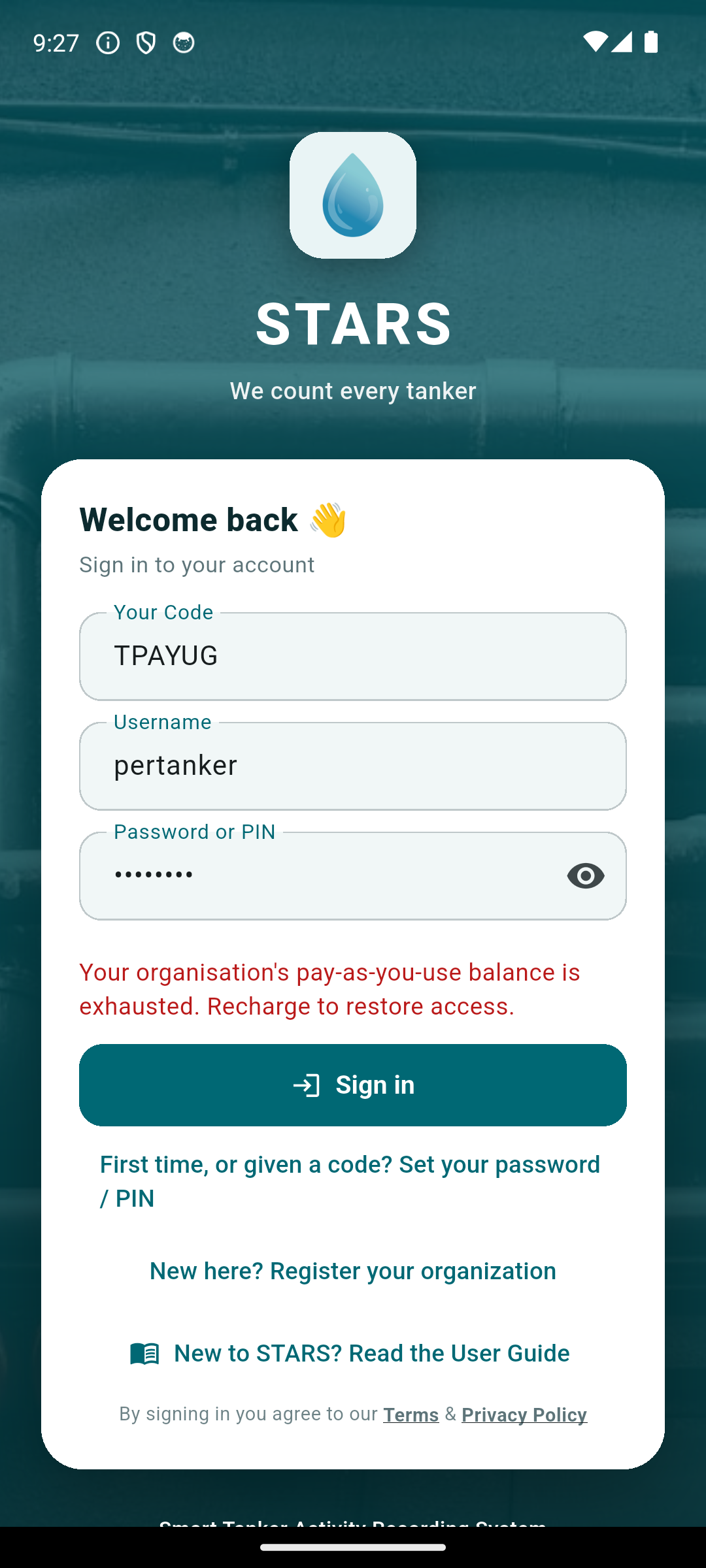
Two controls keep a live account running: your pay-as-you-use wallet — the prepaid balance each tanker is drawn from — and the settings for your organisation’s account. Choosing a plan and paying are covered earlier, in §2 Getting started.
Prefer to pay only when you buy water? Pay-as-you-use keeps a prepaid balance and draws a small percentage of each tanker's cost from it (1% / 2% / 3% on Starter / Standard / Pro) — and nothing in the months you do not buy. It suits seasonal buyers; year-round buyers usually save more on an annual plan.
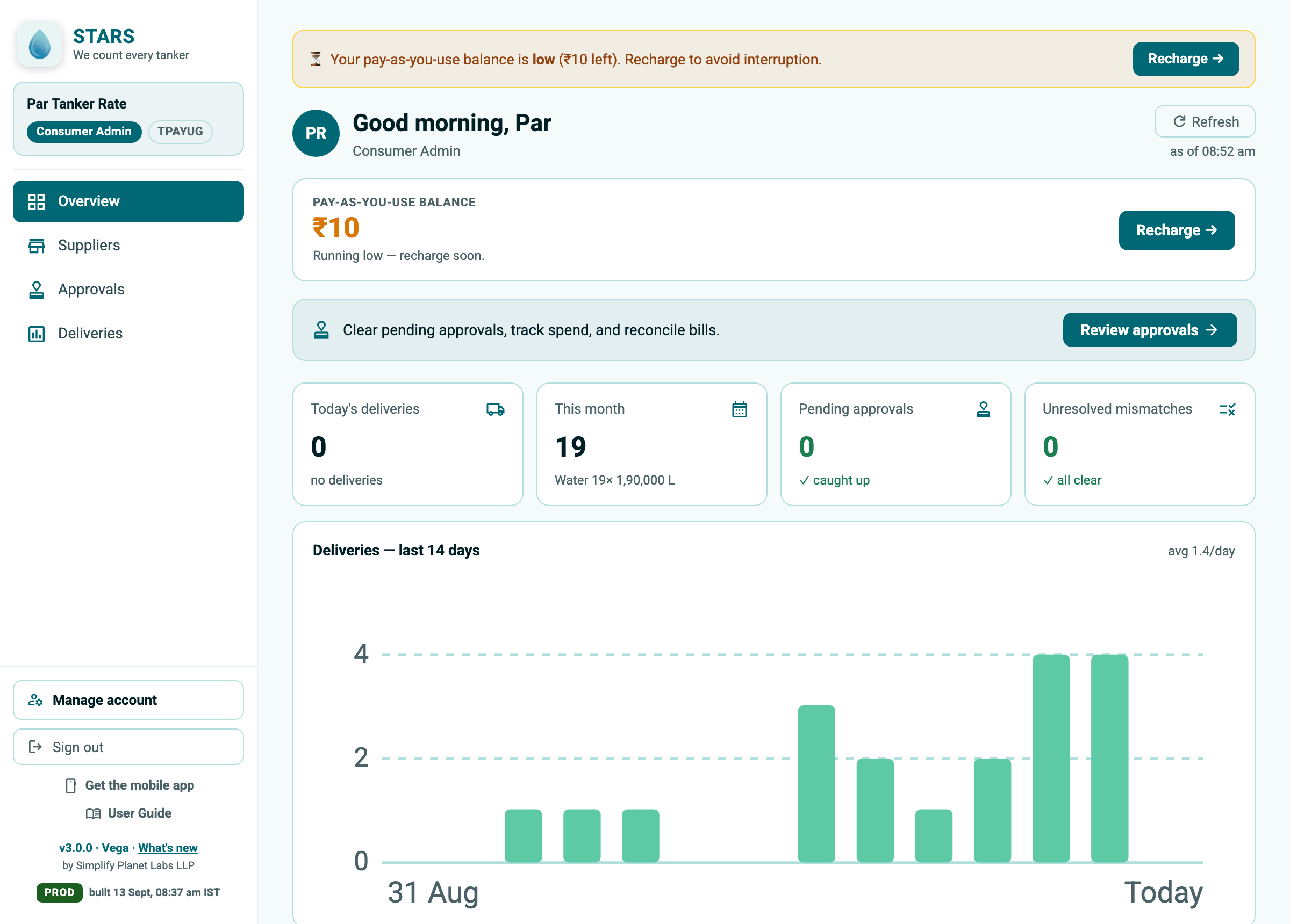
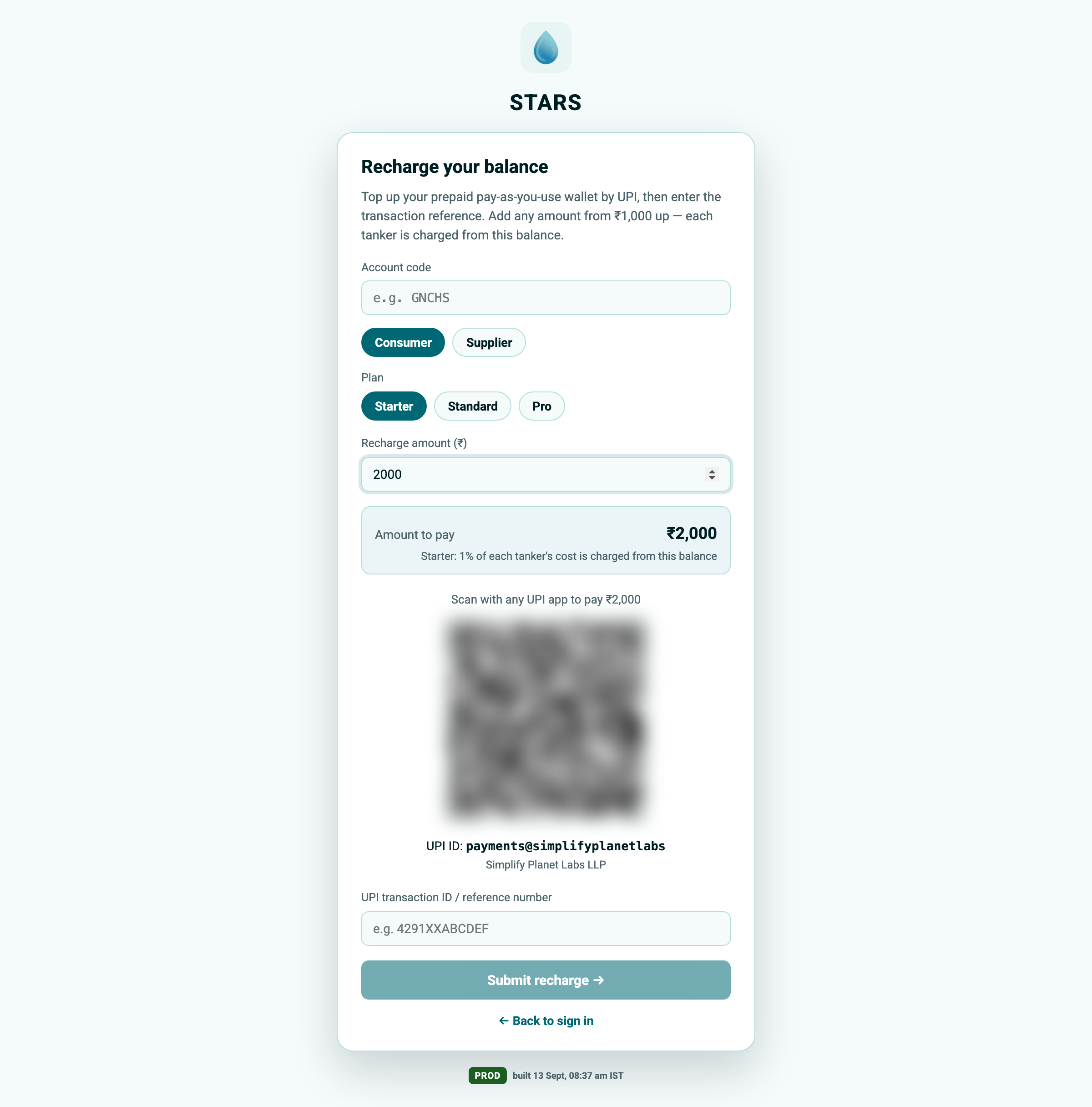
An annual subscription that lapses, or a prepaid wallet that empties, pauses access until you renew or recharge. STARS tells you exactly what is happening — and, for staff, to contact an administrator. Nothing you have recorded is ever lost.
Everything about your own account and membership lives in one place — Manage account, at the bottom of the menu. What you see there depends on your role.
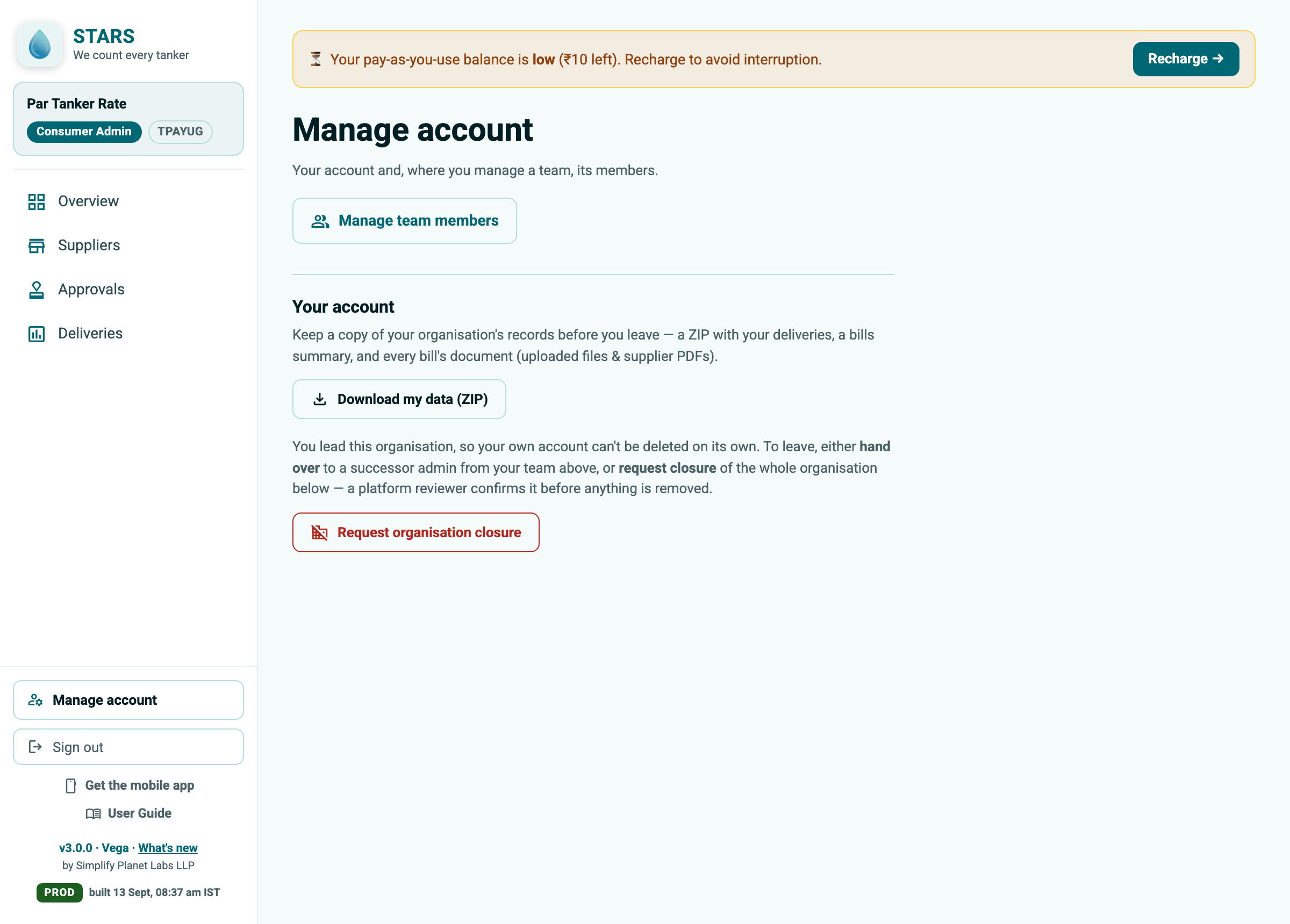
These self-service controls mean you are never locked in: export everything, pass the baton, or leave — on your own, whenever you need to. When you delink or close, a counterparty's shared records are preserved for them, not destroyed.
If you have an email on file, reset it yourself: on the sign-in screen choose Forgot password?, enter your Your Code, username and email, and STARS emails you a one-time reset code. Enter the code and set a new password — you're back in, no waiting.
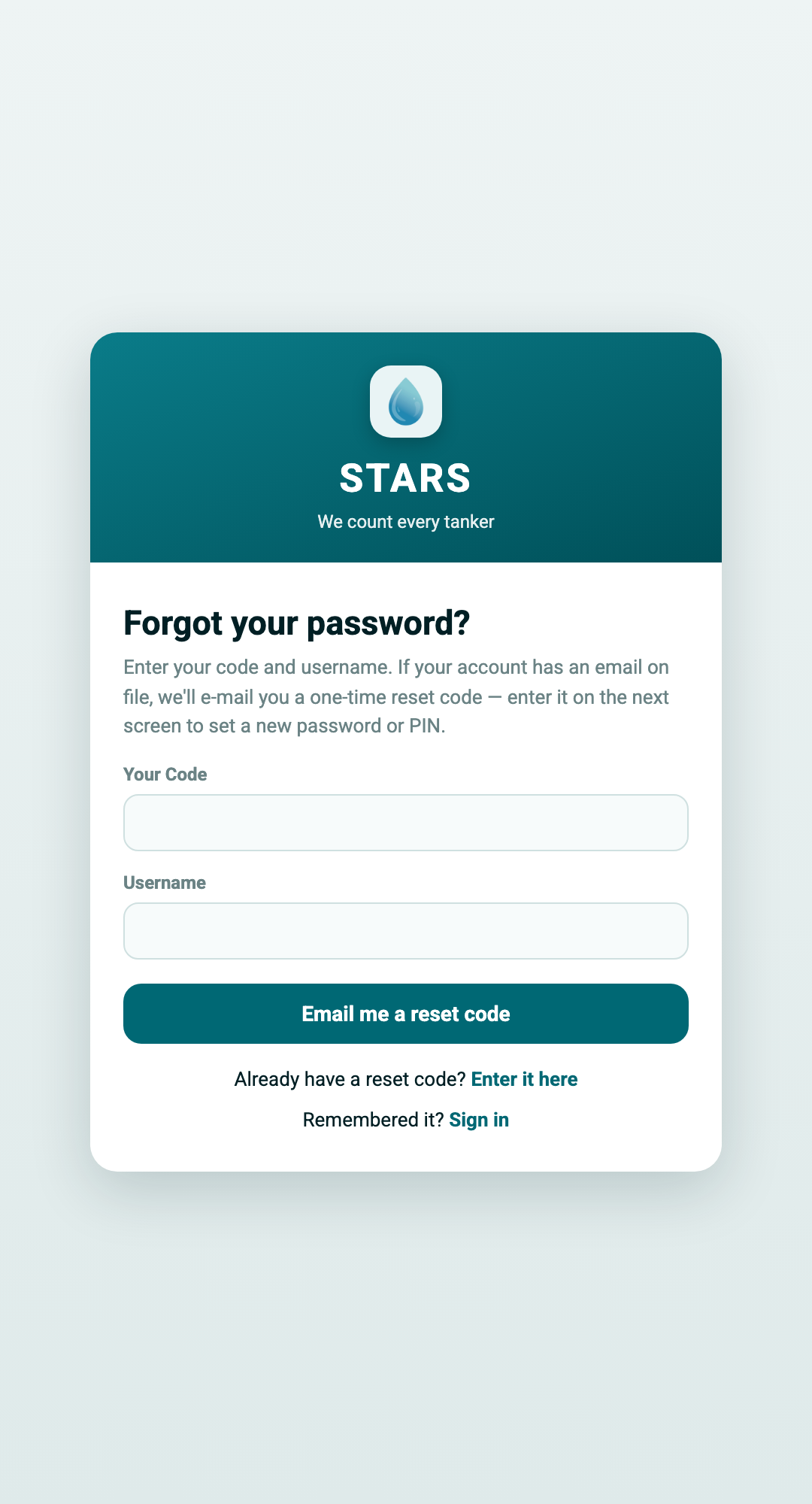
No email on file, or a Security Guard's PIN? Ask your admin or caretaker (for a supplier, your owner or supervisor) to issue a one-time reset code from the Team screen. Then open Activate your account / Set your password / PIN, enter your Code, username and the reset code, and set a new secret (§2.8). Guards set a 6-digit PIN; staff set a password.
One-time codes are single-use and expire after a short time. If yours has expired or been used, request a fresh one — on the registration screen use Resend code; for an activation/reset code, ask whoever issued it to re-issue. Type the code exactly (they are not case-sensitive but spaces matter).
Give it a minute, then check your spam/junk folder. Make sure the email address you entered is correct. Use Resend code to send a new one. If it still doesn't arrive, the address may be mistyped — start the step again with the correct email.
The usual cause is the wrong Your Code. Your device remembers the last Code used, which may not be yours. Clear the Your Code field and type your own organisation's Code, then sign in.
Your role is mobile-only (Security Guards work at the gate on the phone). Install the STARS mobile app from the Get the mobile app page (§2.9) and sign in there.
Open the Get the mobile app page (§2.9) and tap Download from Play Store — it opens the STARS listing on Google Play, where you install it and get automatic updates.
If you see Finish syncing first, some deliveries on the phone haven't uploaded yet. Reconnect to the internet, wait for the sync card to read All synced (or tap Sync now), then sign out. This prevents lost records on a shared phone.
A TEST organisation is a free pilot: fully usable, but its invoices are non-binding samples and it can be removed cleanly. A REAL organisation is verified and live, with real billing. Simplify Planet Labs LLP moves you from TEST to REAL when you're ready; you don't do it yourself.
No. A SAMPLE invoice is a preview shown while your organisation is a pilot — it demonstrates how billing will look and is explicitly "not a demand for payment". Real invoices appear only after your organisation is verified as REAL.
Deliveries that need sign-off wait in Approvals — this includes anything a guard recorded and a Care Taker's web upload. Ask your Consumer Admin to approve it. Ordered tankers become Delivered only once confirmed at the gate with a photo (§4.3).
You pick a plan and pay by UPI or cheque — for UPI, scan the QR for the exact amount and paste the transaction reference; for cheque, record the details and attach a photo of the cheque (§2.2). Our team confirms the payment, and you can use STARS right away in the meantime. Every payment gets a proper PDF invoice, emailed to you and downloadable. STARS is also onboarding a payment gateway, after which more options and faster validation will be available.
It's an alternative to an annual plan: instead of a flat yearly fee, you keep a prepaid wallet and STARS draws a small percentage of each tanker's cost from it — and nothing in the months you don't buy water (§7.1). Top it up by UPI from the Recharge page. It suits seasonal buyers.
Access is paused until you recharge (pay-as-you-use) or renew (annual). STARS shows exactly what's needed; admins and owners can pay from the link shown, and staff are asked to contact an administrator. Nothing you recorded is lost — everything is there again the moment payment is confirmed.
All of that is under Manage account at the bottom of the menu (§7.2). You can download a ZIP of your records, hand leadership to a successor, delete your own account, or (for an organisation's leader) request the whole organisation be closed. A counterparty's shared records are always preserved for them.
PGCHS). Auto-generated when the organisation is created.We're here to help you count every tanker.
Simplify Planet Labs LLP
Support email: support@simplifyplanetlabs.app
Website: simplifyplanetlabs.app
A few things that solve most questions quickly:
v3.2.0 · Vega) in the sidebar or on your mobile dashboard to see the latest features for your role.